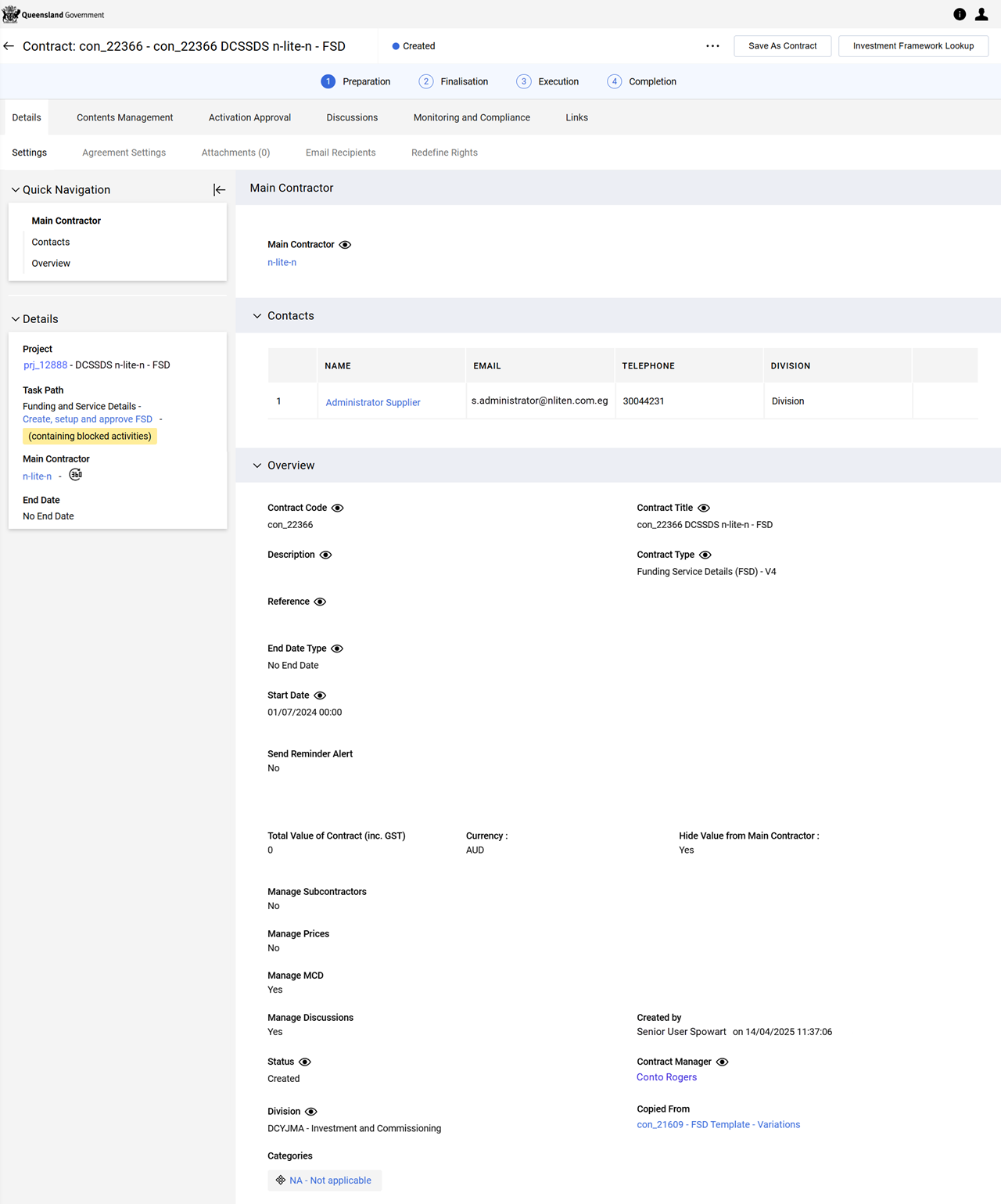
Set up an FS contract
The setup step involves xxxx processes.
 (optional) Enable contract negotiation
Warning
Ensure configuration of the Agreement Settings is completed BEFORE creating a contract (MCD) proposal. Refer to Agreement Settings page.
Consider carefully setting these fields as the settings are fixed for the life of the contract, including the contract variation process. For example, if contract negotiation is set to occur during initial contract creation, it will occur during the contract variation process.
Once the MCD proposal is created, editing these agreement settings IS NOT possible.
-
From the contract, Details tab > Agreement Settings page.
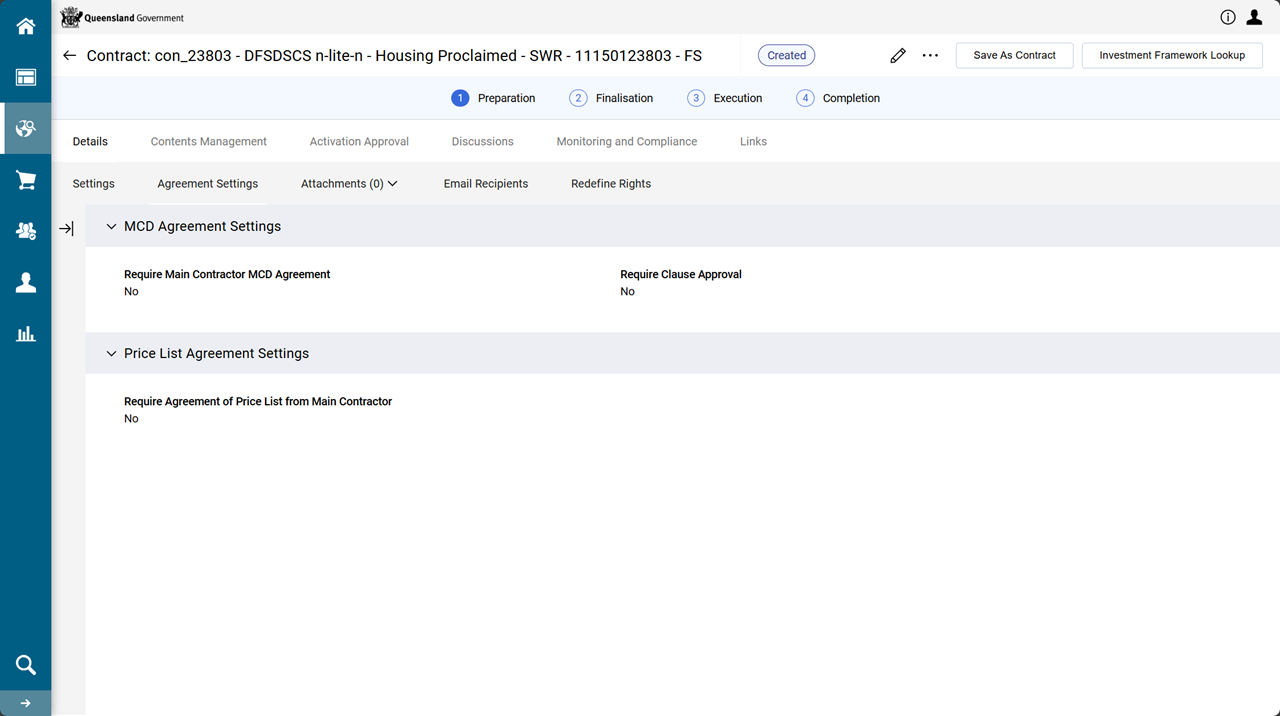
- Click
 .
. -
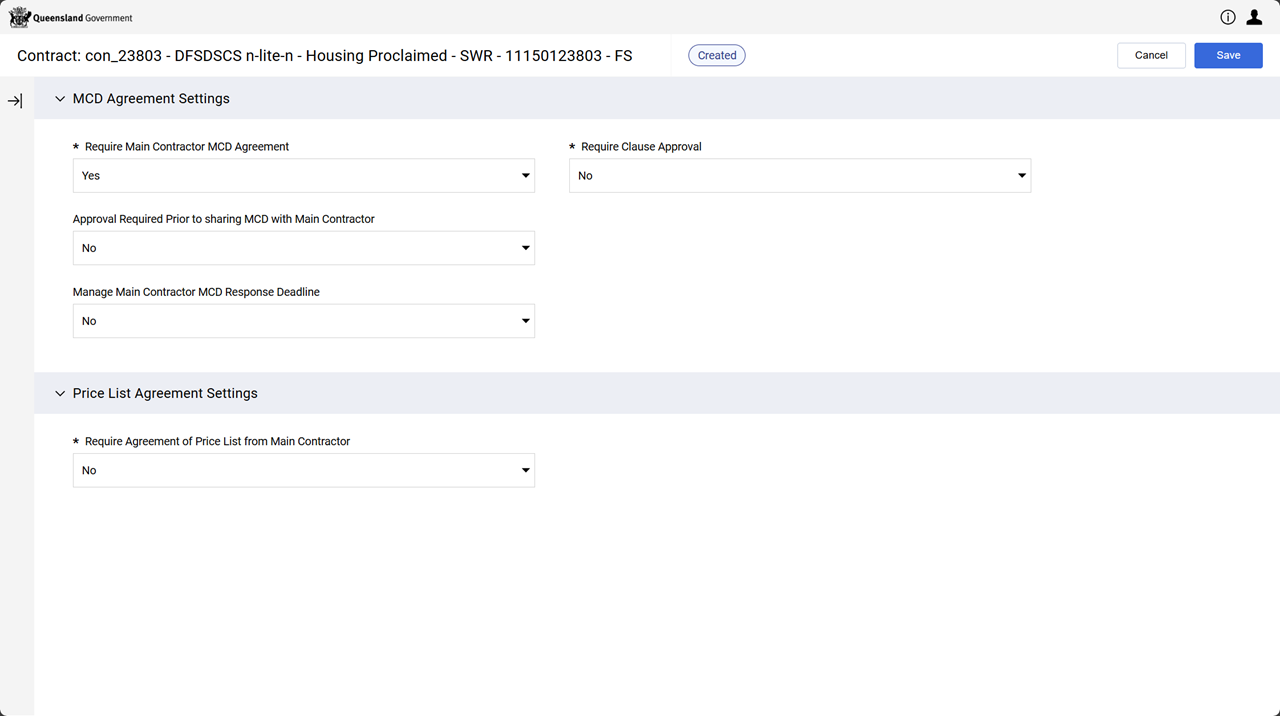
Edit the fields as needed.
Refer to MCD Agreement Settings section for the setting of the fields in this section
-
Require Main Contractor MCD Agreement = Yes
-
-
Click Save.
Additional Information (i.e. manage the contract content)
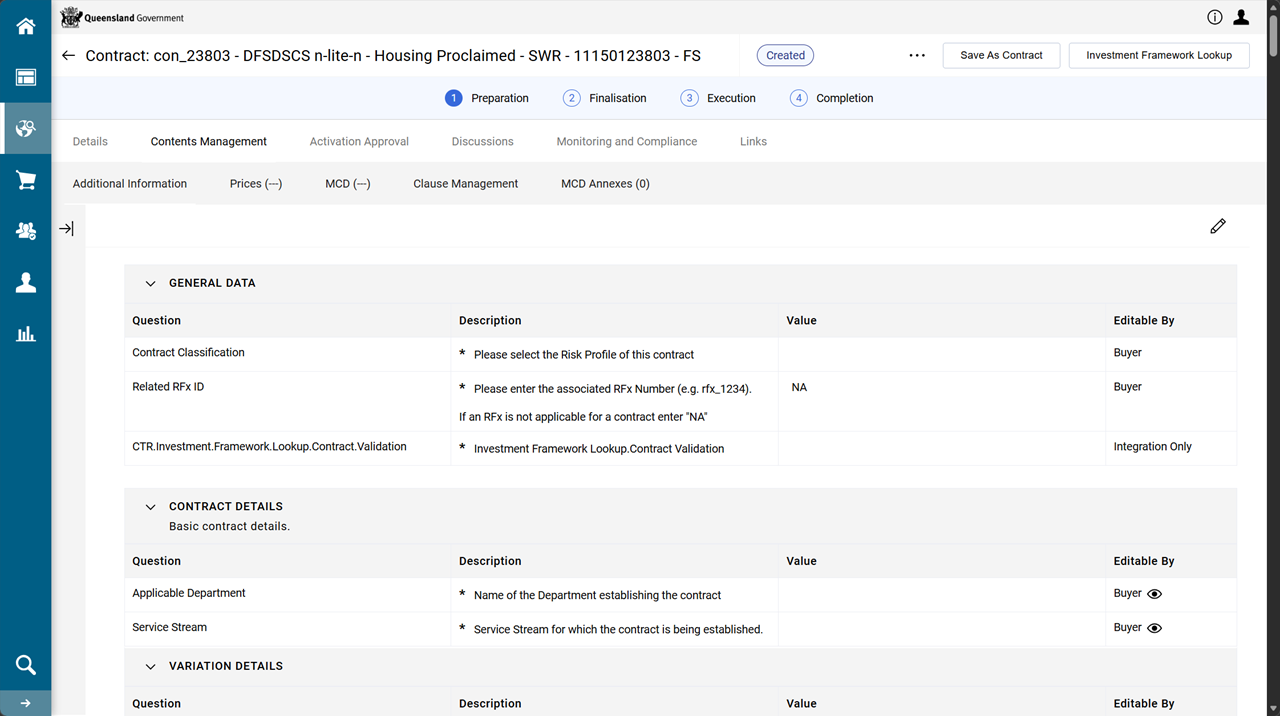
Additional Information contains a number of fields which are included in the MCD Master Contract Document. There are multiple sections (groupings) of fields.
Mandatory fields are marked with an asterisk (*) and must be completed before a contract can be activated. Refer to Validate for Activation
-
From the contract, Contents Management tab > Additional Information page.
-
Click
.
-
Complete all sections as required. (not all sections are listed here)
Note Each field in each section provides a Description of the information being captured.
The following information will highlight certain sections and fields (i.e. not every field value).
GENERAL DATA section.
-
Select a value from the Contract Classification dropdown list.
Note The Risk Profile options are selected based on the outcomes of the Value Risk Matrix.
- Focused (low value / high risk contracts)
- Leveraged (high value / low risk contracts)
- Routine (low value / low risk contracts)
- Strategic (high value / high risk contracts)
CONTRACT DETAILS section
Choose the correct combination of values from the dropdown lists:
-
Applicable Department
-
Service Stream
VARIATION DETAILS section
-
Leave the fields with the defaults. They are to be populated during the variation process.
RELEVANT SERVICE AGREEMENT section.
-
Enter the associated FSD Service Agreement Number.
Note If no funding and service details exists for this Funded Organisation, create one. Refer to Funding and Service Details (FSD) Contract.
If this funding schedule is new to an existing Funding and Services Details, follow departmental procedures for attaching the signed variation agreement or deed of variation and funding schedule to the Funding and Services Details.
Warning FSD Service Agreement Number is important as it is used by P2i reports when reporting on linked contracts and displays within the Funding Schedule.
FSD Service Agreement Number becomes more important to be correctly populated due to a workaround where the contract's Link tab > Contract Relationships page to the FSD may be removed if the FSD has reached the P2i system limit of 100 links.
Refer to Link an (FS) contract to an FSD.
IMPORTANT DATES section
-
Enter the contract Establishment Date.
Warning Only insert a date if the Services under the Funding Schedule are new with an approved establishment or start-up period later that the Schedule Start Date.
The Establishment Date is the date by which the services must be operational (i.e. doors open). If the Services are existing Services or new Services that are to commence delivery from the Schedule Start Date then do not enter a date (i.e. leave blank).
-
Leave Execution Date blank (unless it is known).
It will be entered at the Sign and execute contract step (or just before activating the contract).
SERVICE OUTLET section
-
Enter the details of the Service Outlet.
Tip Refer to Service Outlet Number.
REPORTING REQUIREMENTS - DATA, STATEMENTS & REPORTS YOU ARE TO SUBMIT section
-
Click the checkbox for the values needed.
Ticking the checkbox for Periodic Reports values will display a specific section for each ticked checkbox with mandatory fields for the report frequency and the due day(s) for the report.
Example Selecting Financial Statements will display the REPORTING - PERIODIC - FINANCIAL STATEMENTS section.
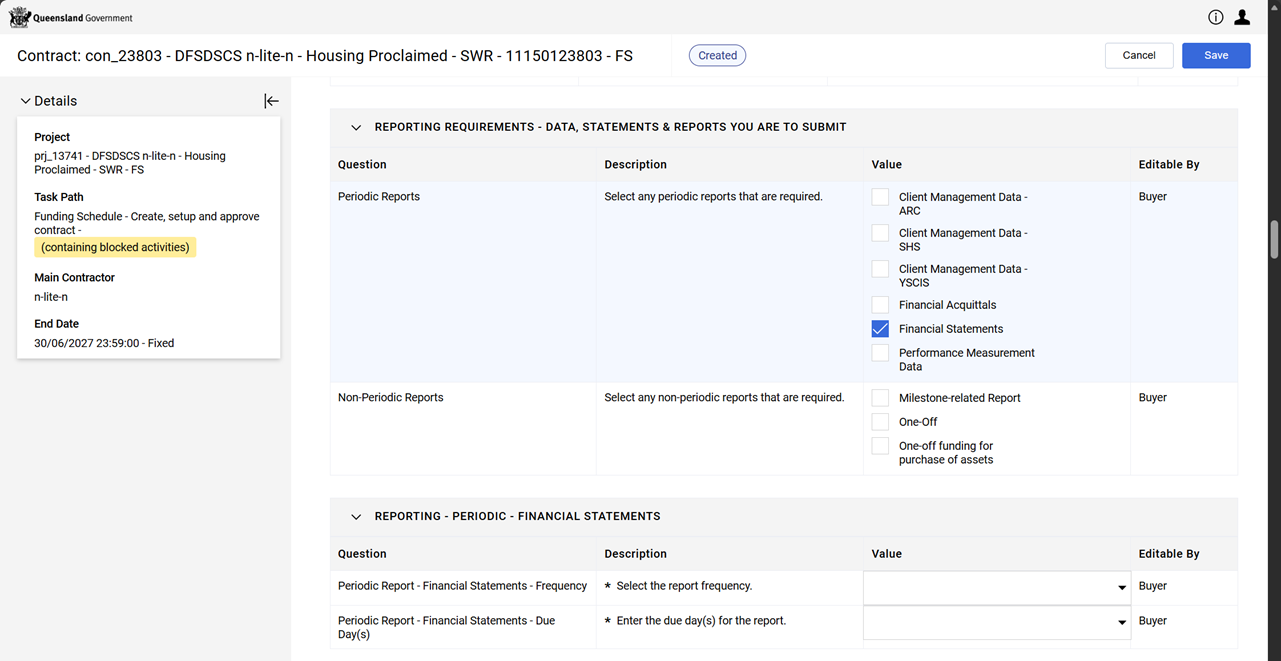
Ticking the checkbox for Non-Periodic Reports values will display a specific section for each ticked checkbox with a mandatory field for the details and standard of reporting.
-
-
Click Save.
Create a Pricing Table
Create the per-annum and one-off funding amounts which form the deliverables of a contract.
Note The deliverables must be added to the prices section and approved before the deliverables and measures are completed within the Investment Framework Lookup.
Warning If prices section is changed AFTER the deliverables are selected within the Investment Framework Lookup ALWAYS return to the Investment Framework Lookup and Align Targets.
Tip Download and use Funding and Target Calculator (xlxs, 342KB). This excel workbook is useful in planning the financial year price list and alignment of the financial year targets in the IRF (Investment Framework Lookup).
Tip Engage with the Contract - Prices guided learning simulation.
Download the Contract Prices template (xlxs, 19KB) to use when adding prices to a contract with NO category sections or prices.
-
Navigate to the contract's Contents Management tab > Prices page.
-
Click Create Price List.
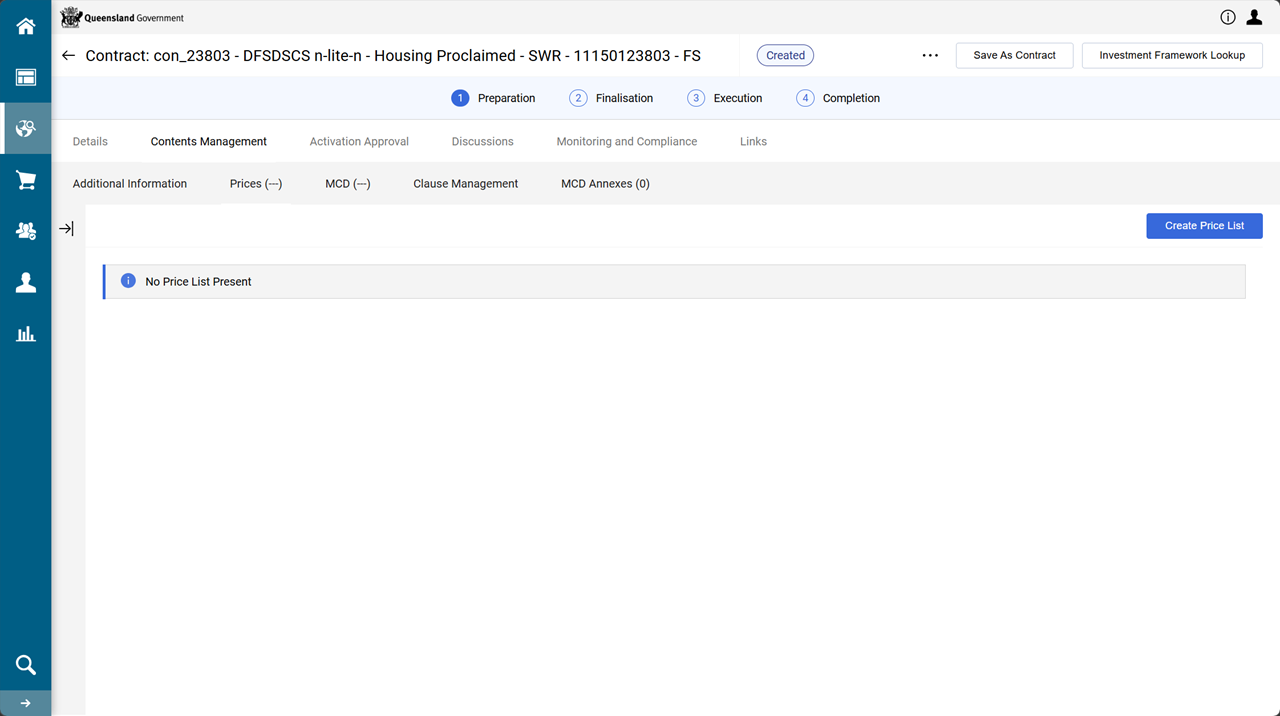
-
Enter the date the price list is Effective from.
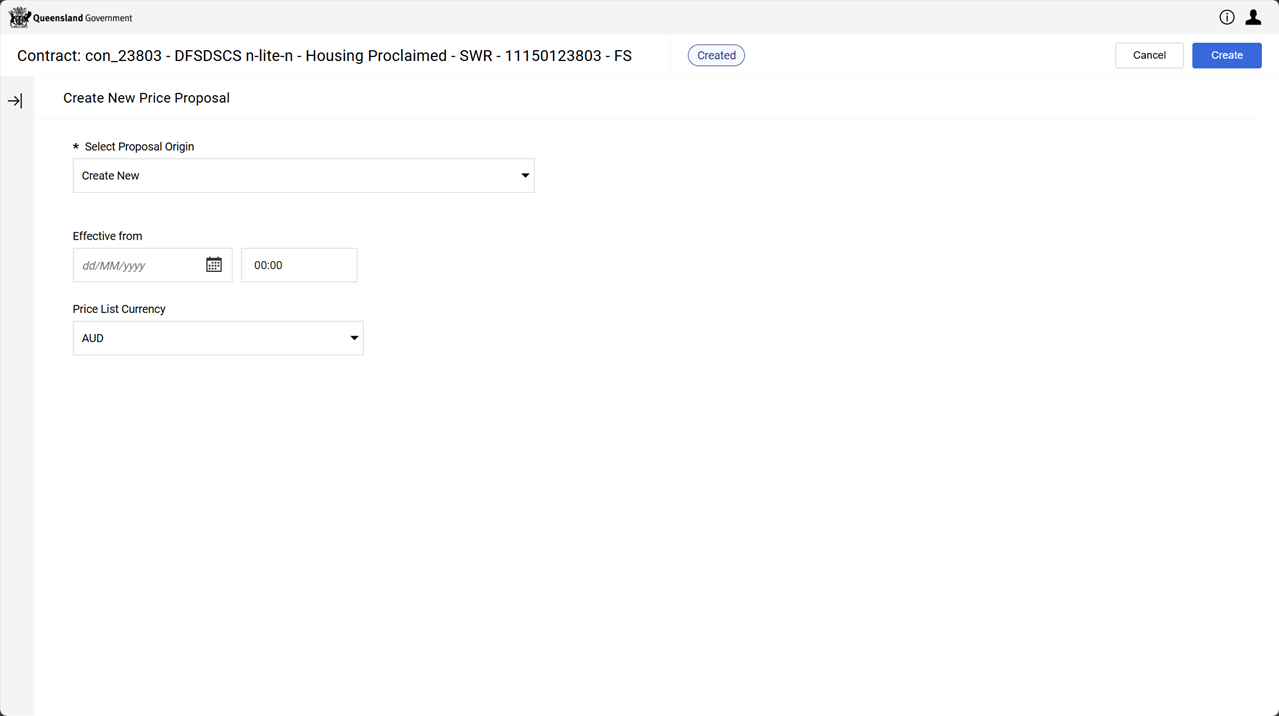
-
Click Create.
-
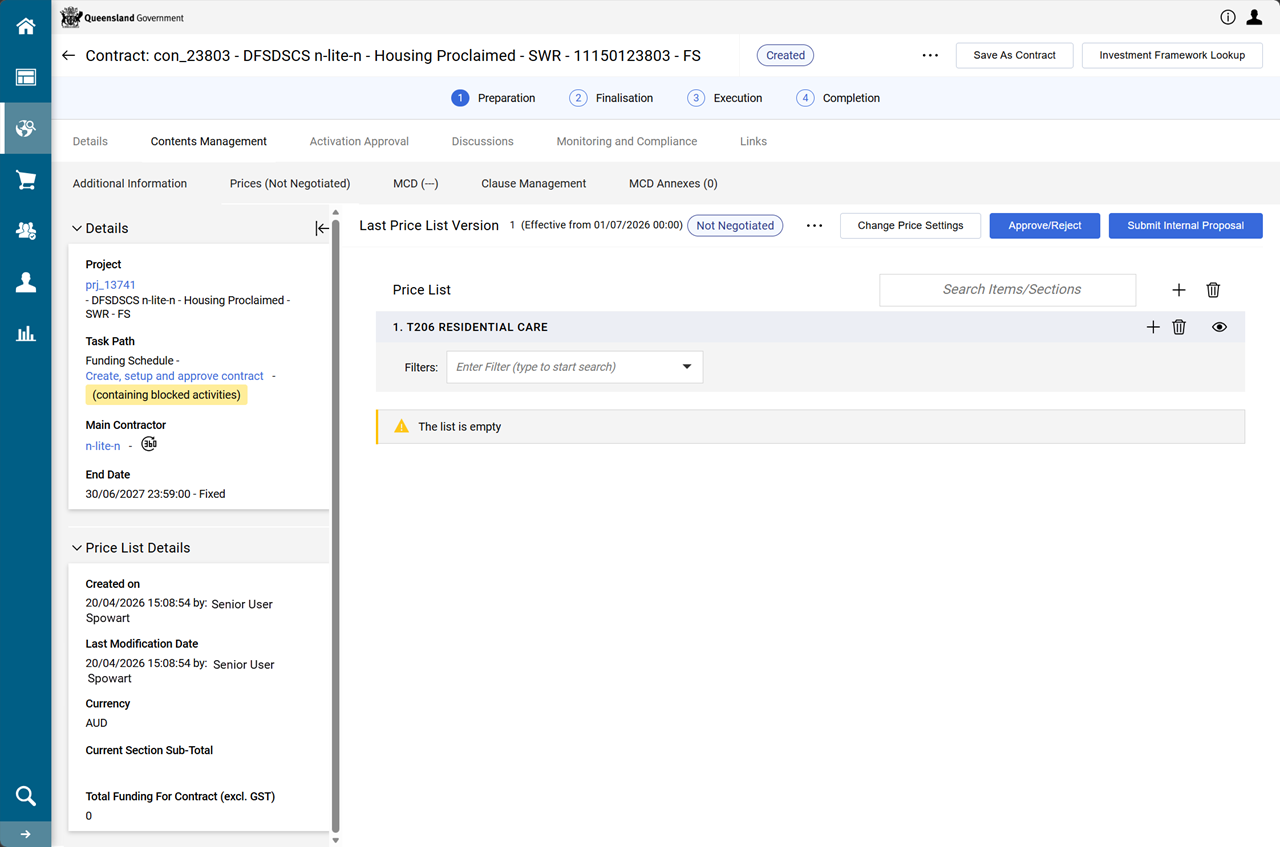
Click + (the add section button).
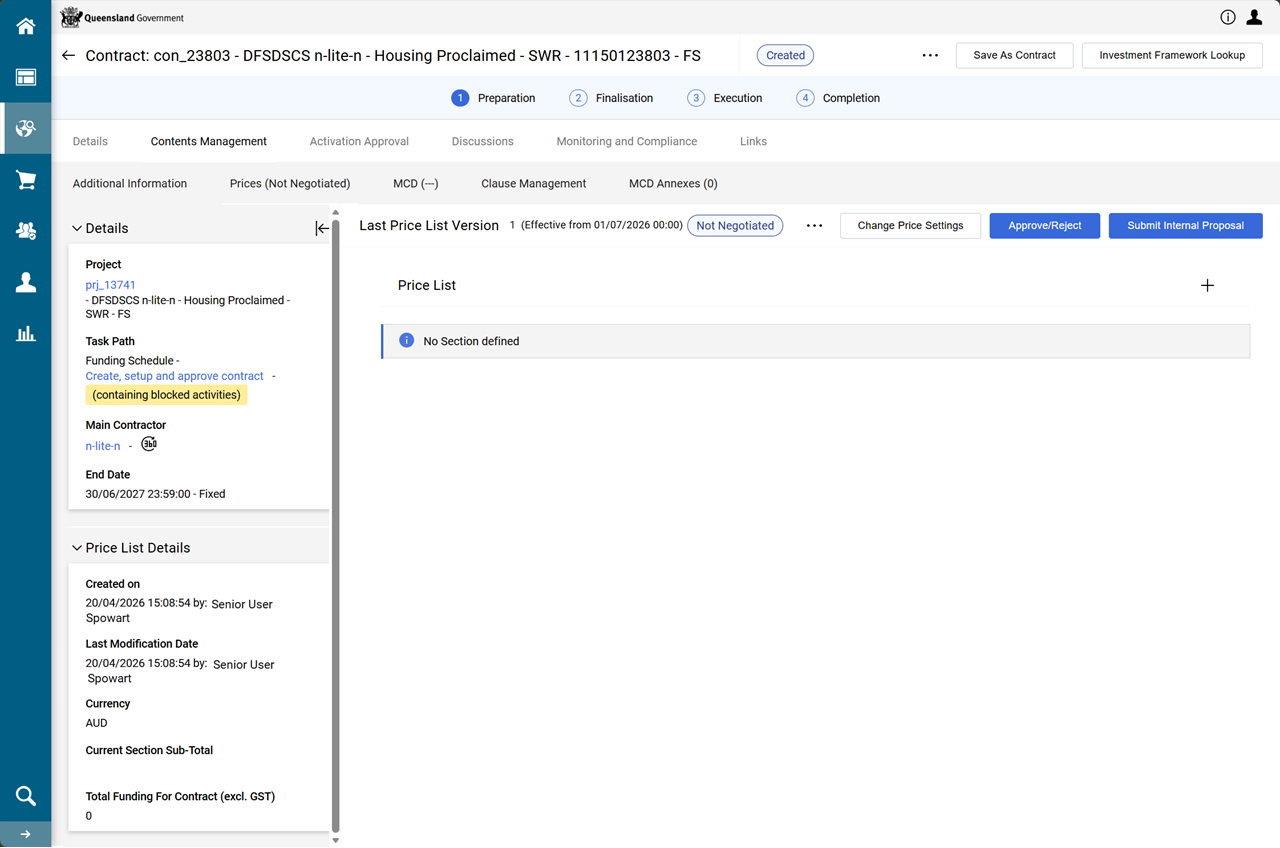
-
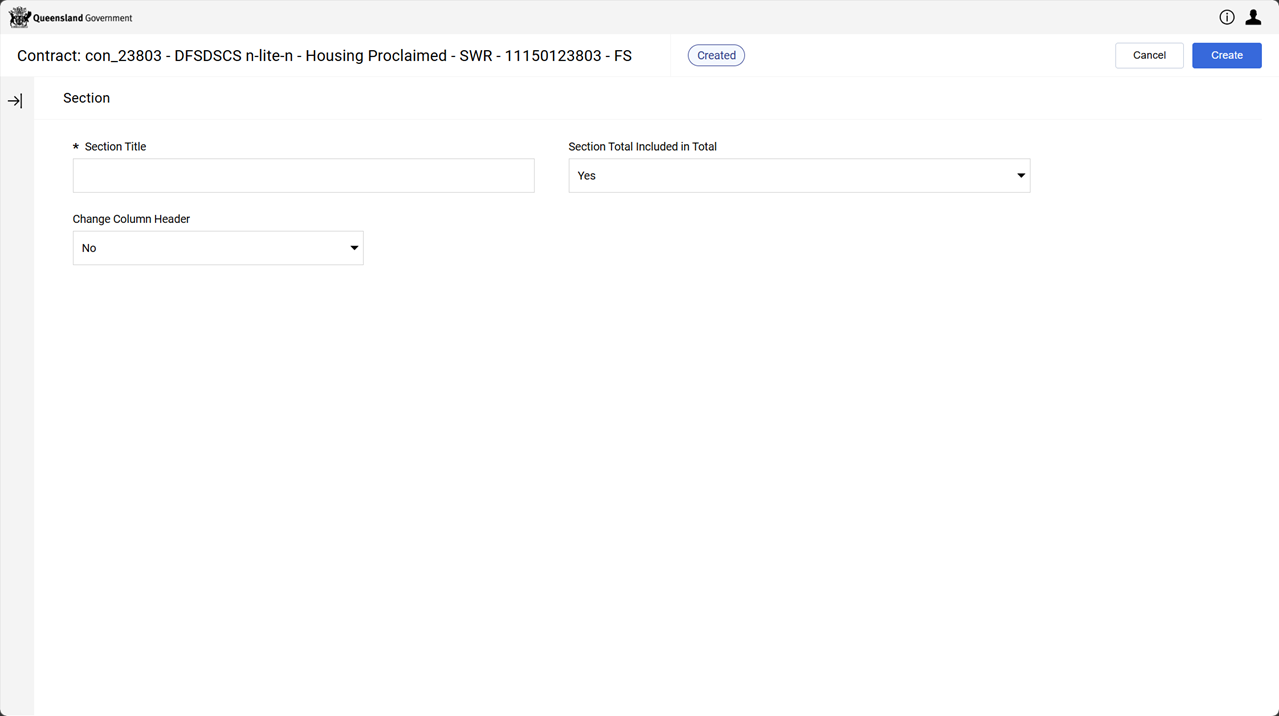
Enter a Section Title and click Create.
Tip Enter the Service Type Code and description (e.g. T206 Residential Care).
Where appropriate create additional Sections for each Service Type - Service User combinations.
-
Click + (the add item button within the section)
-
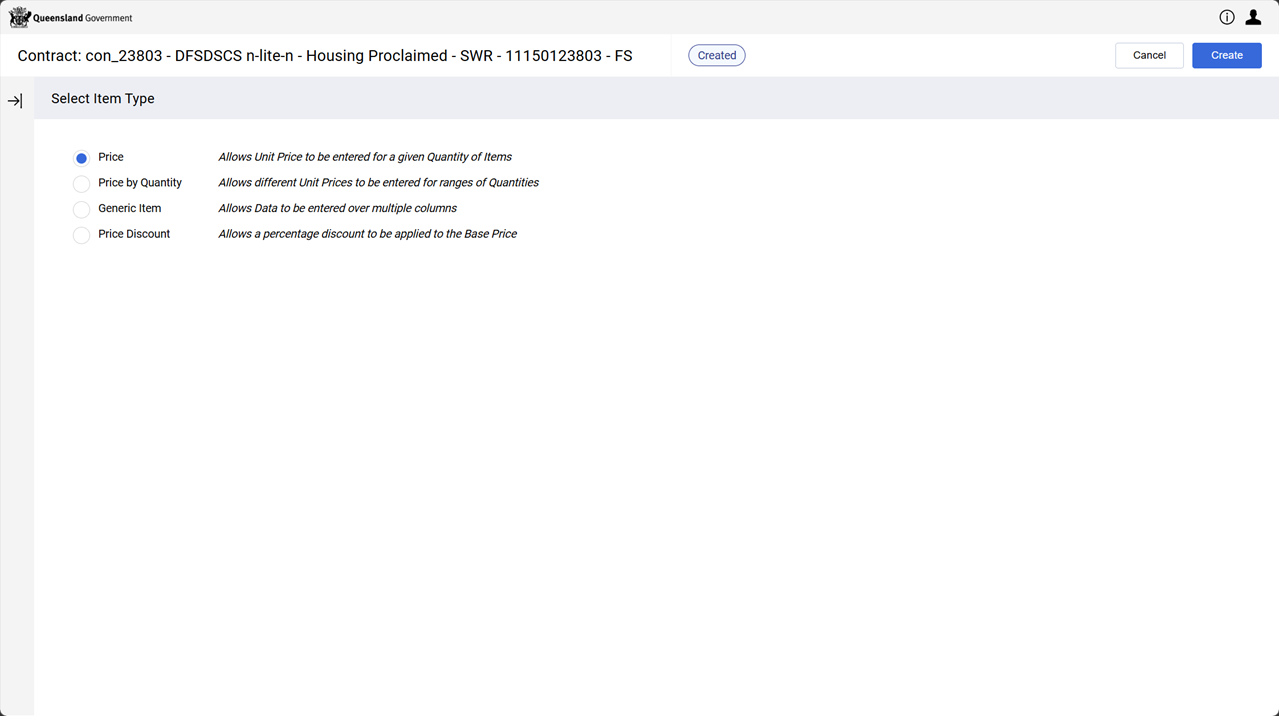
Select Price and click Create.
-
Search for and select the Associated Master Service Type - Service User.
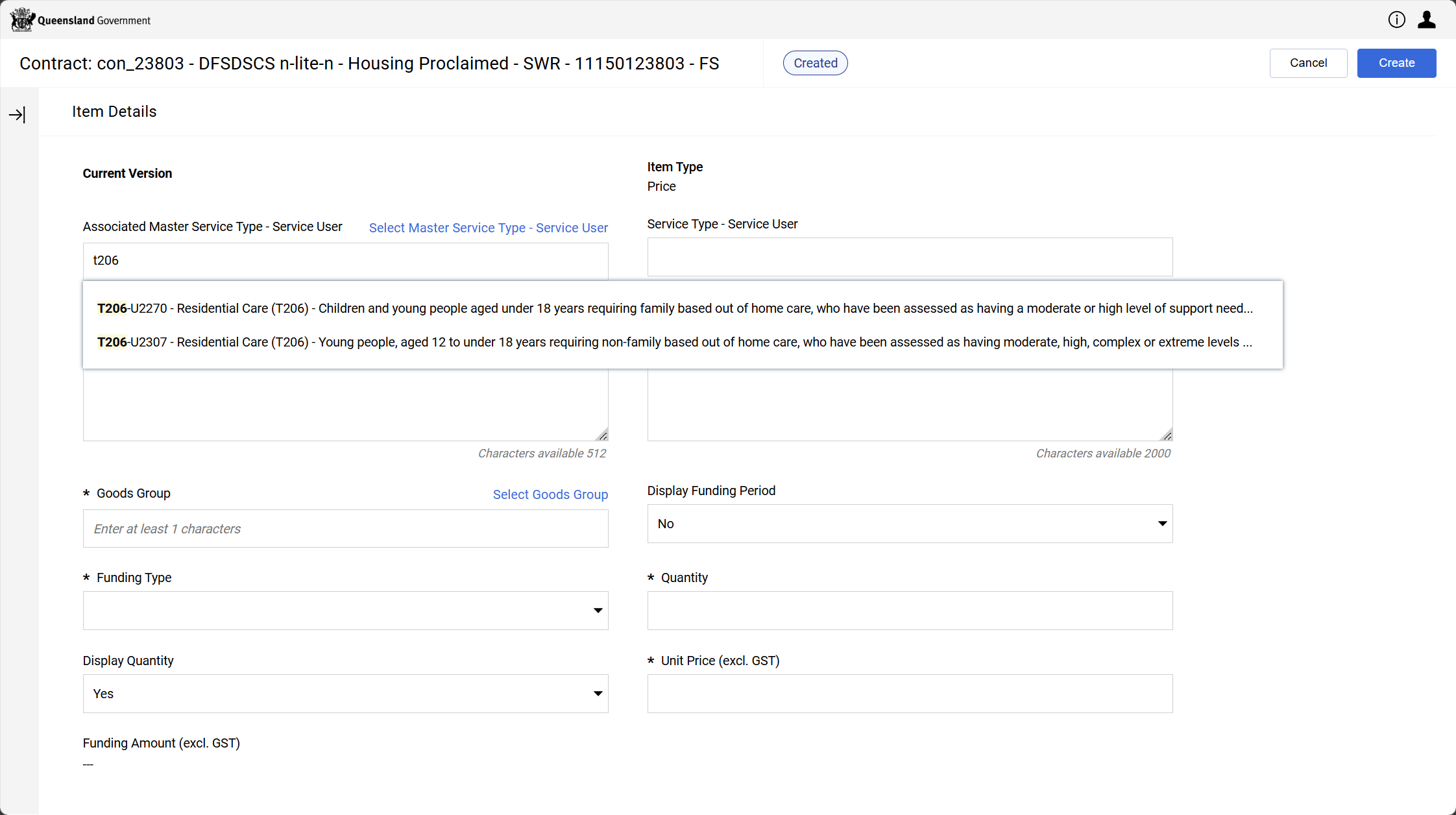
Tip Search by Service Type Code or Service Type Description, Service User Code or Service User Description.
Example To search by Code or Description:
Click Select Master Service Type - Service User hyperlink
-
Select an option from the Filters dropdown list.
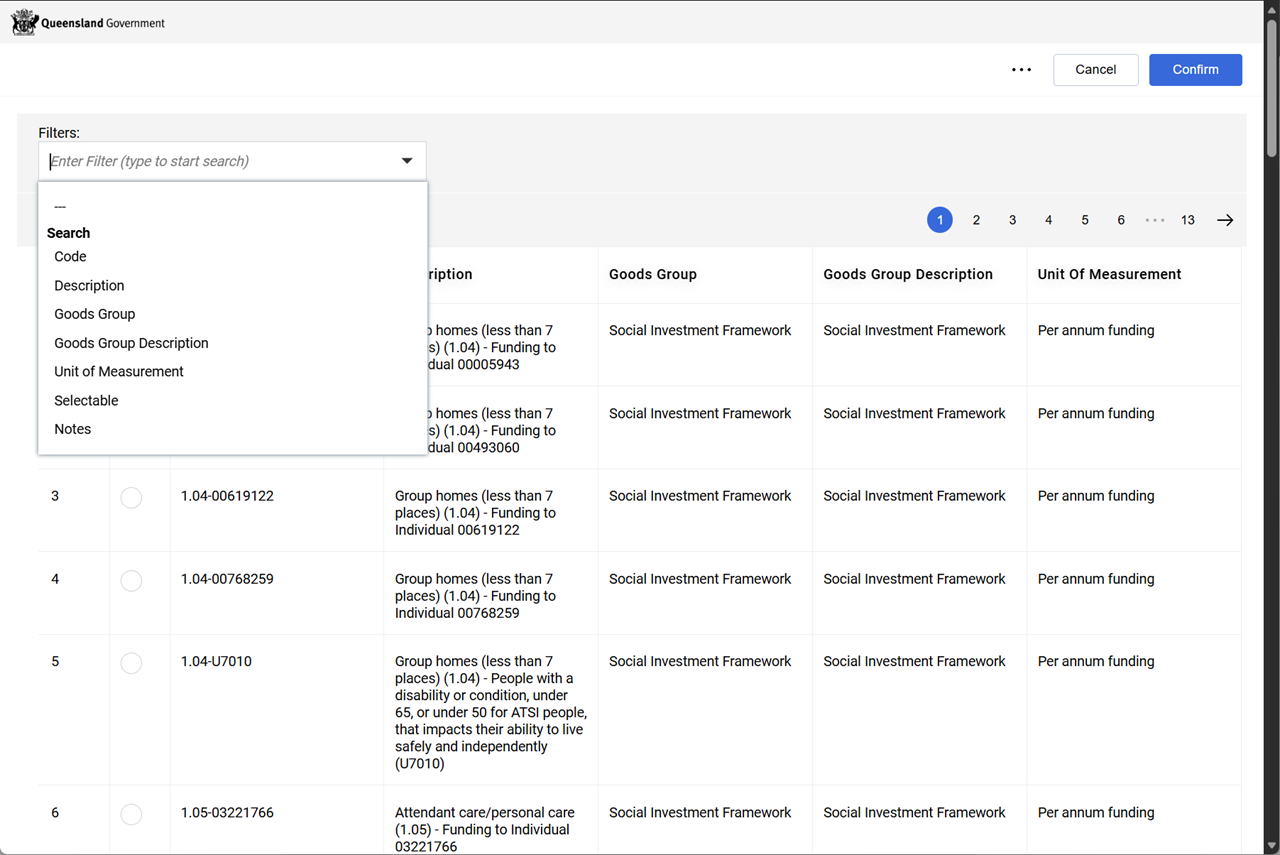
-
Select an operator from the Operator dropdown list.
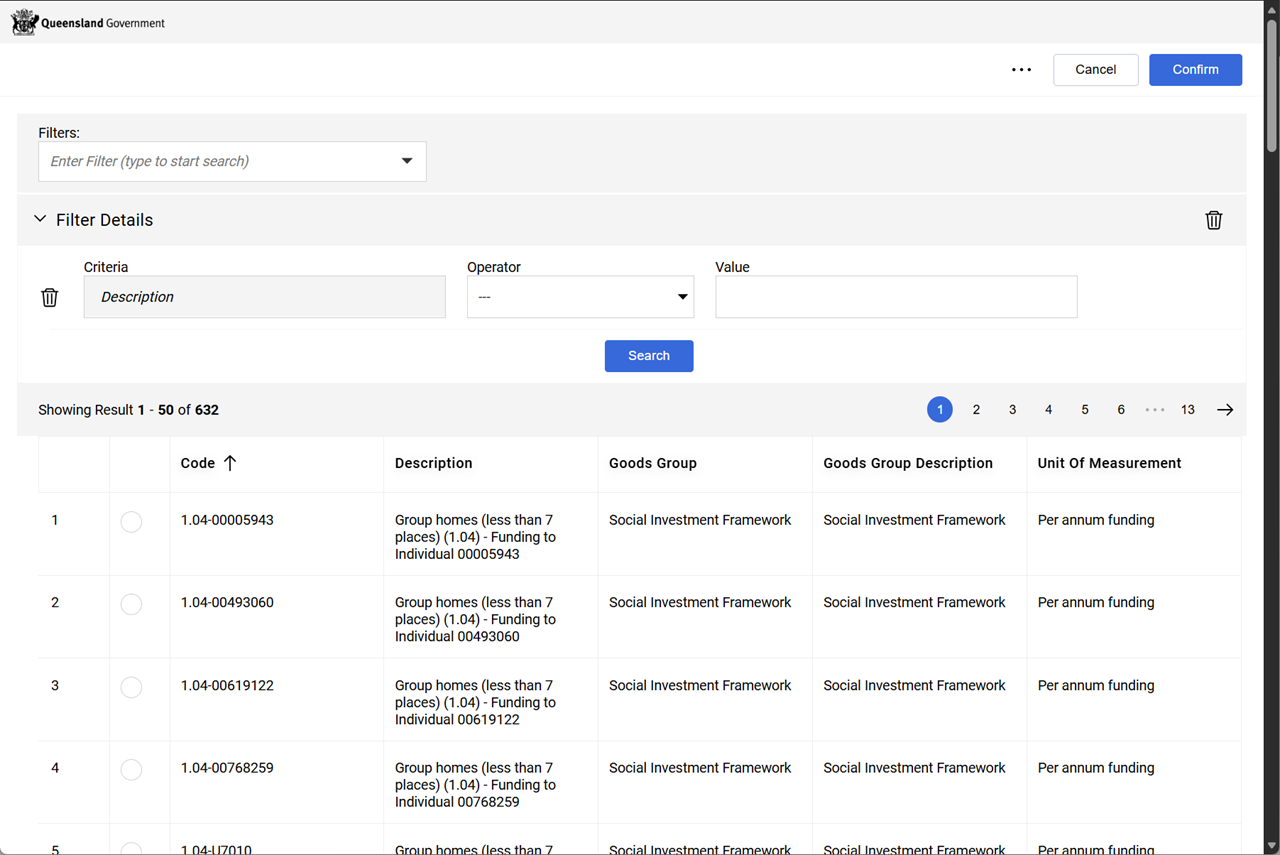
-
Enter text in Value.
-
Click Search.
-
Select a radio button next to code in the results list.
-
Click Confirm.
-
-
Enter a Funding Period for the year or period the funding applies to.
Tip Replace this text with either:
-
where the Funding Types are Per annum funding or Brokerage, enter the applicable financial year in format yyyy-yyyy (e.g. 2026-2027)
-
where the Funding Types are Milestone, One-off funding and One-off funding purchase assets enter the payment month/year in format mm/yyyy (e.g. 07/2026)
Warning The funding period must be:
- within the start and end dates of the contract
- entered in the required format without any spaces or other characters.
-
-
Set Display Funding Period to Yes.
-
Choose a value from the Funding Type dropdown list.
Note Select Per annum funding or Brokerage for funding periods that have the format yyyy-yyyy.
Select Milestone, One-off funding or One-off funding purchase asset for funding periods that have the format mm/yyyy. -
Enter 1 for the Quantity.
Warning Only enter 1 in the Quantity field.
-
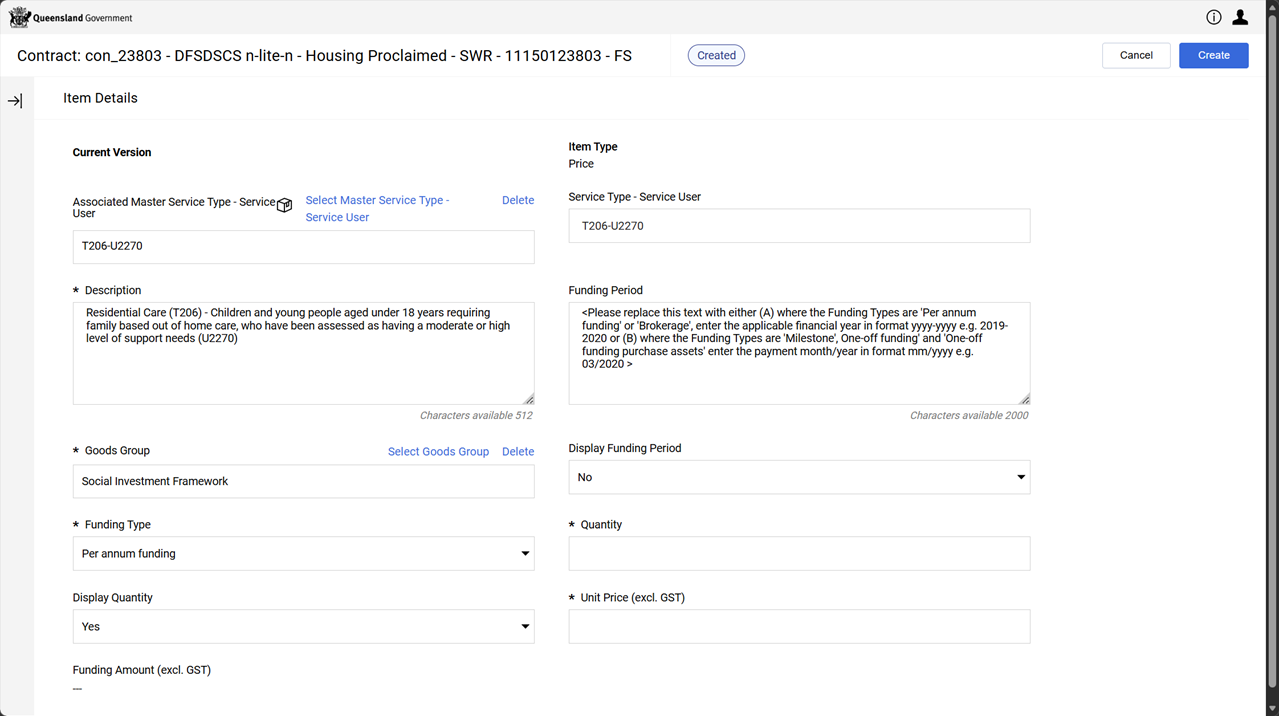
Enter the Unit Price (excl. GST).
Tip Enter the pro rated amount for the funding period.
Example Consider a contract which has a start date (01/04/2026) and an end date (31/03/2028) with a per annum funding of $400,000.
2025-2026. Unit price = $100,000
2026-2027. Unit Price = $400,000
2027-2028. Unit Price = $300,000.
-
Click Create.
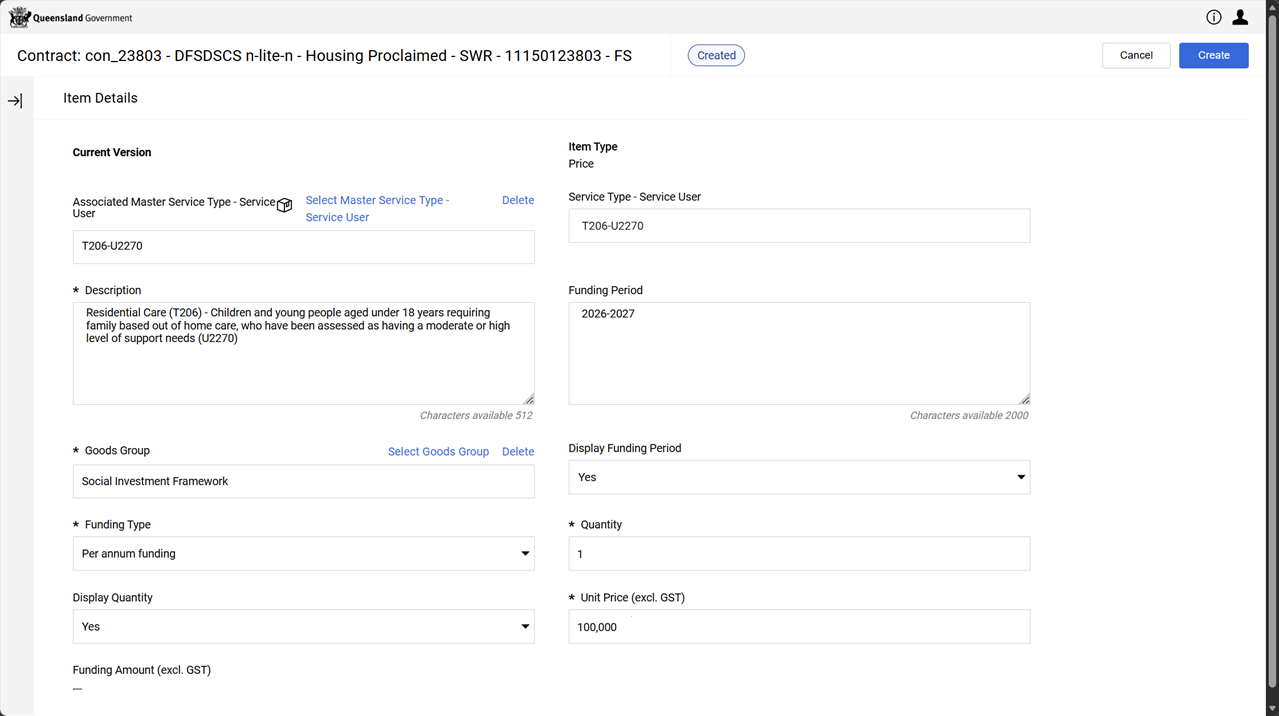
-
(Optional) Repeat the steps for each funding period.
Example To save time in creating items for a multi-year contract:
-
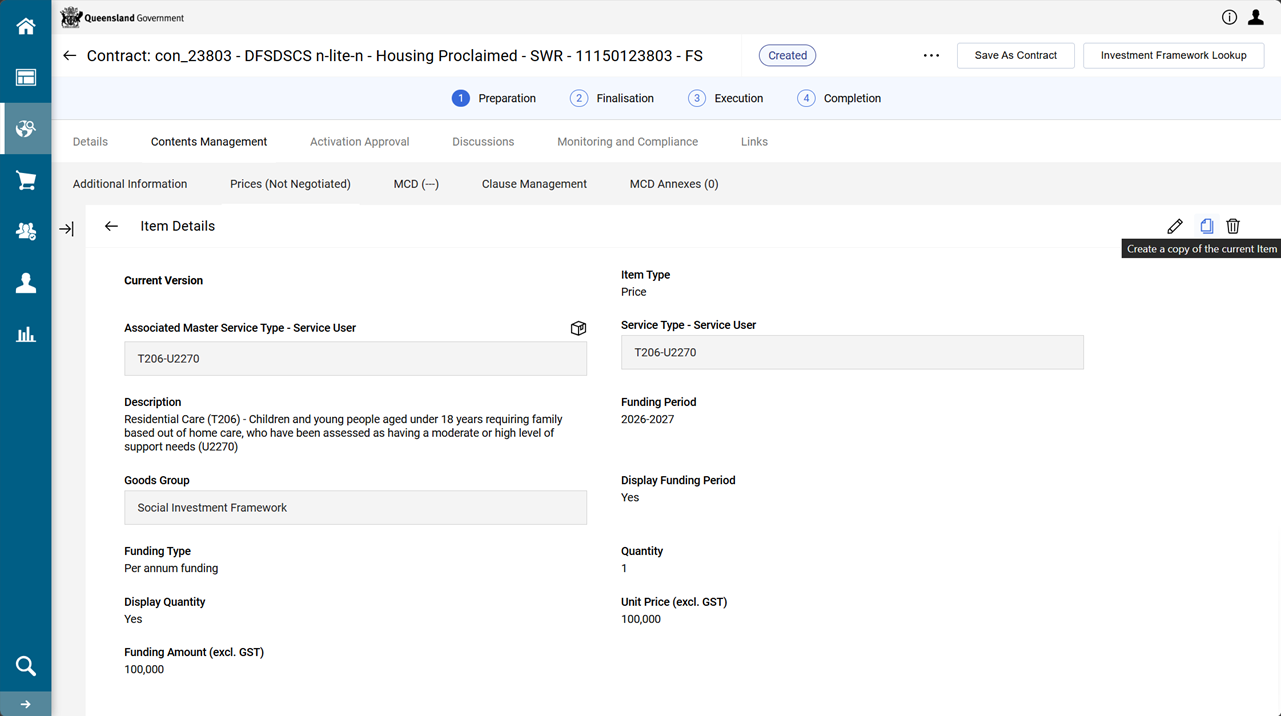
Select an item (click the Description hyperlink)
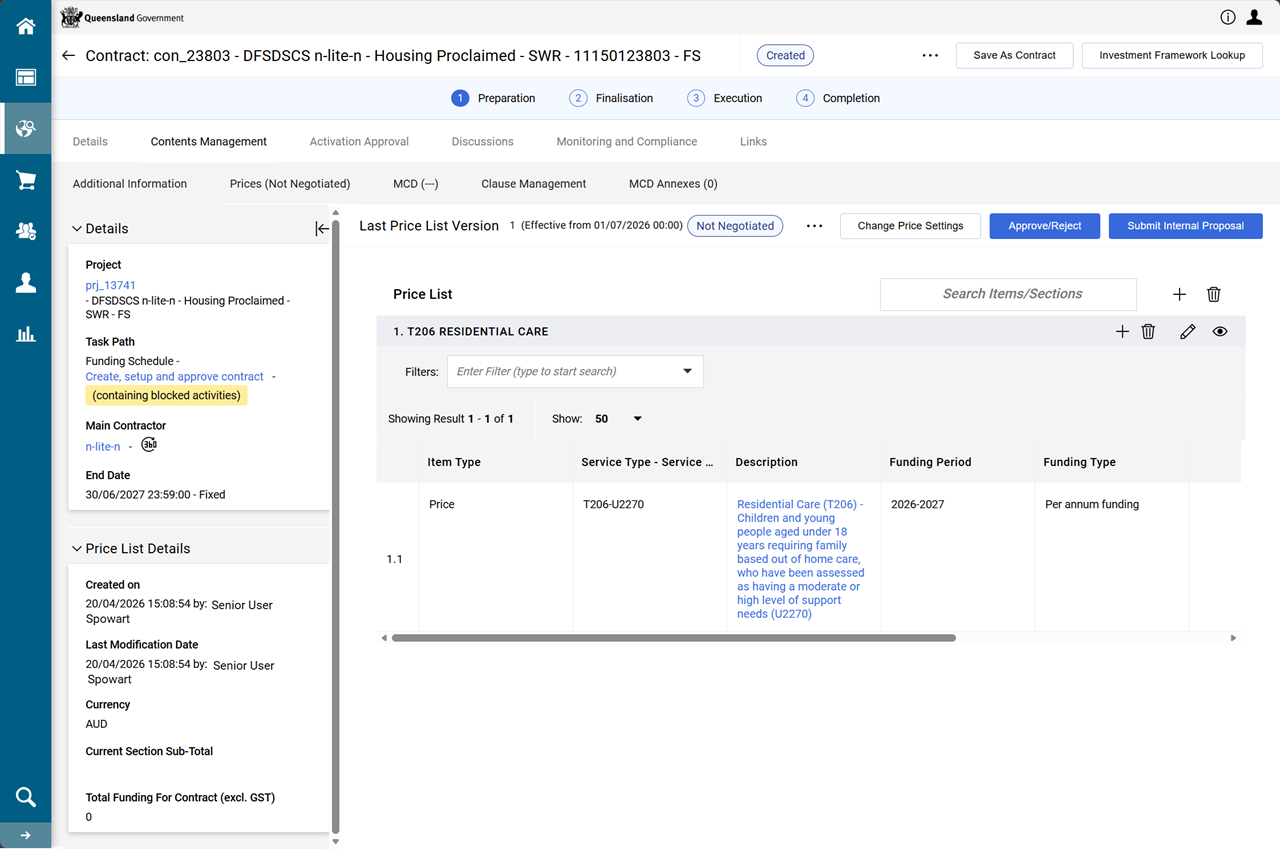
-
Click Copy button.
-
-
Click Approve/Reject.
-
Click Approve.
Note When a Master Item is selected, the fields will automatically populate.
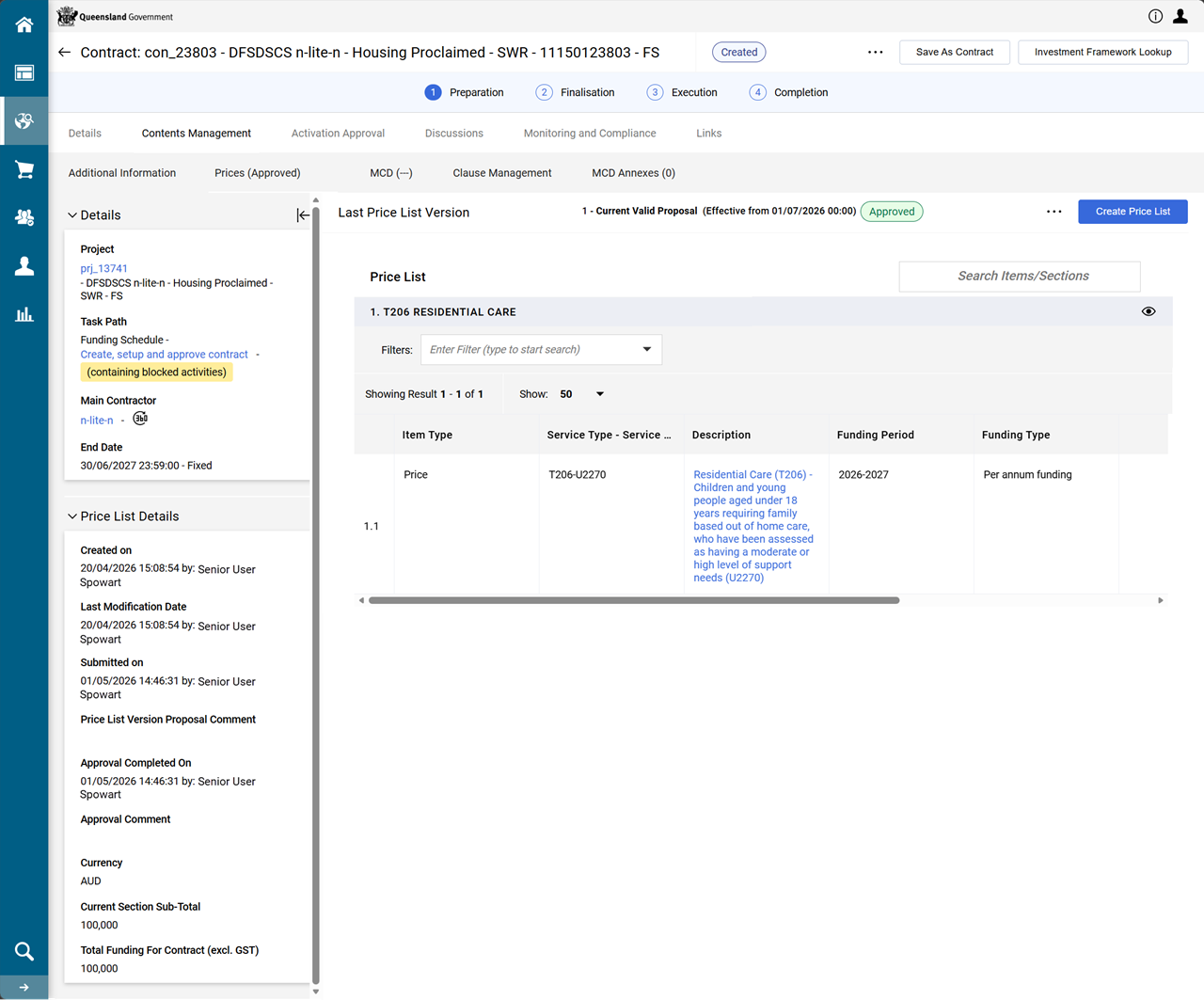
The Current Valid Proposal status is Approved.
Add Catchment Area and Measures - Investment Framework Lookup (IRF)
These instructions set up the contract to add geographical catchment area/s and outline the performance measures the service outlet is to report against.
Tip Remember the Funding and Target Calculator (xlxs, 342KB) downloaded in the Create a Pricing Table step will help complete the deliverable targets in the IRF (Investment Framework Lookup).
-
Click Investment Framework Lookup (top right of screen).
Warning If the Investment Framework Lookup does not display correctly, close the browser window and click the link again.
1. Add Geographical Catchment Area/s
-
Add the Geographical Catchment Area values.
-
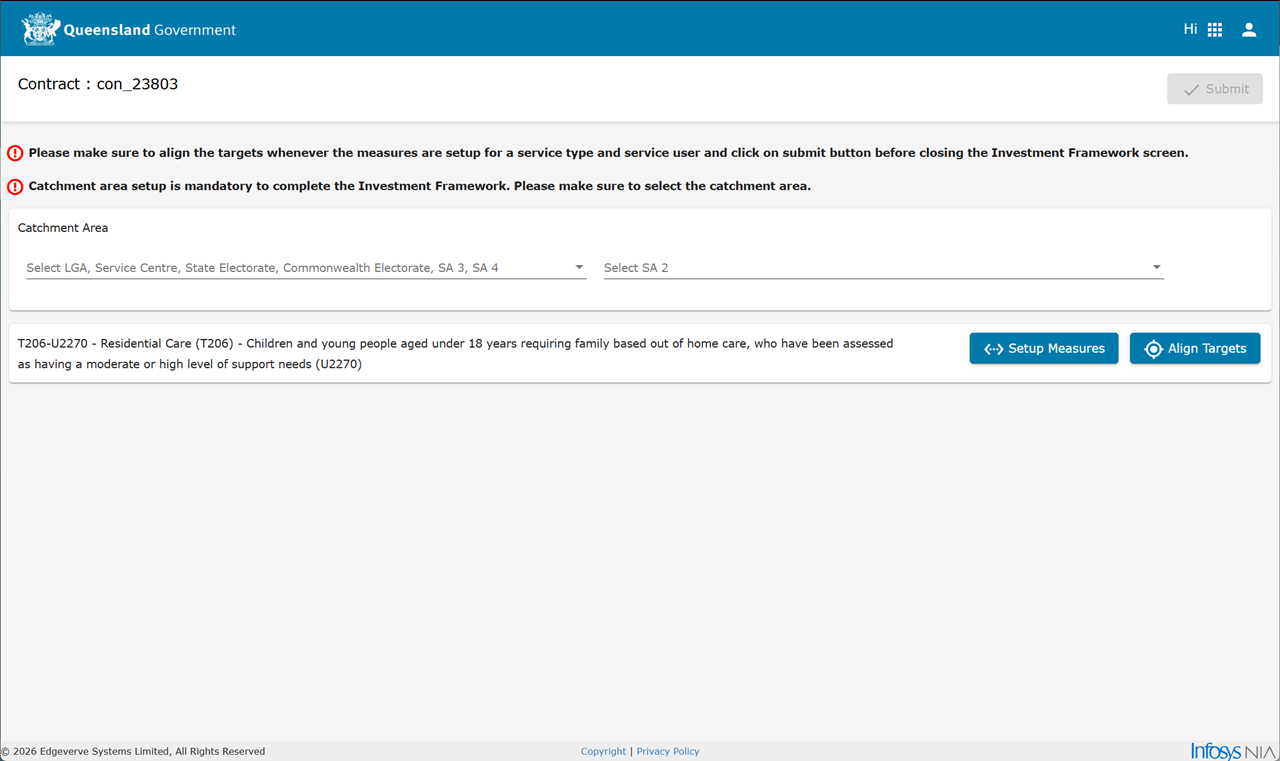
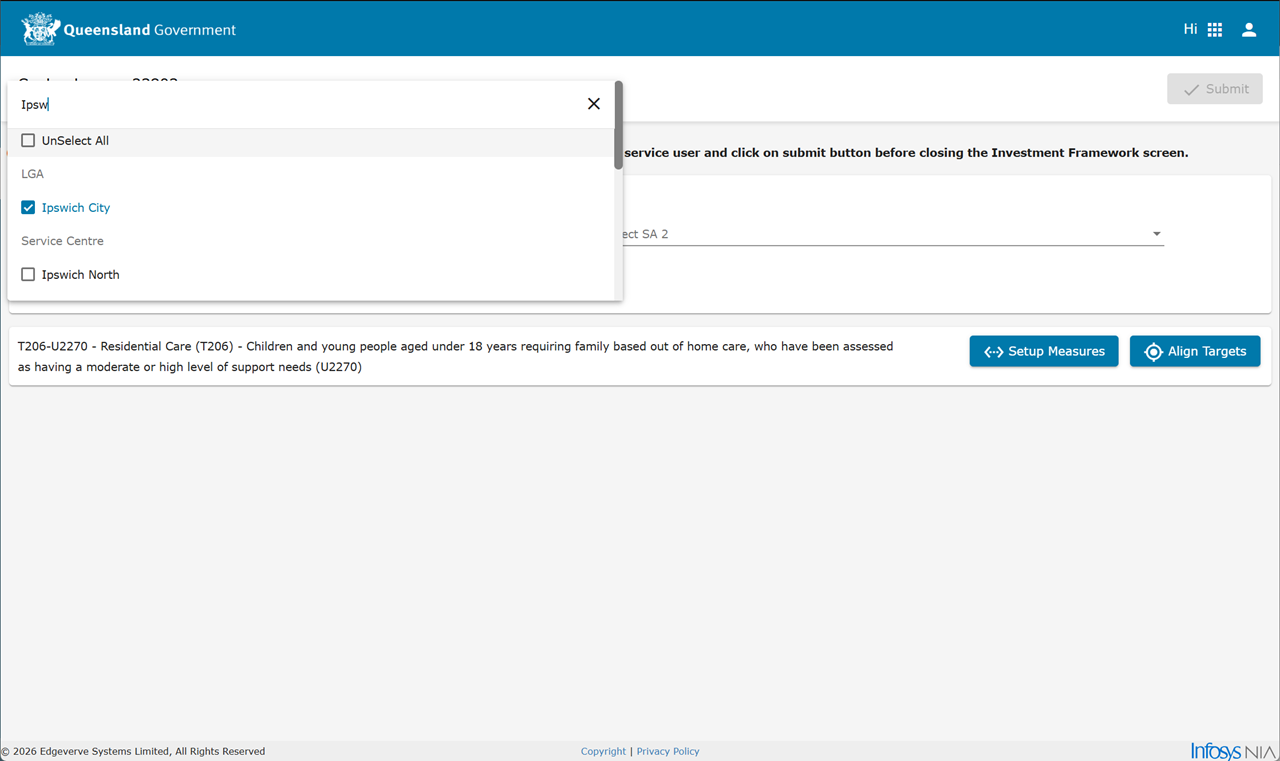
Select one or more values from the Select LGA, Service Centre, State Electorate, Commonwealth Electorate, SA 3, SA 4 dropdown list.
Tip Use the search field to narrow down your selections.
-
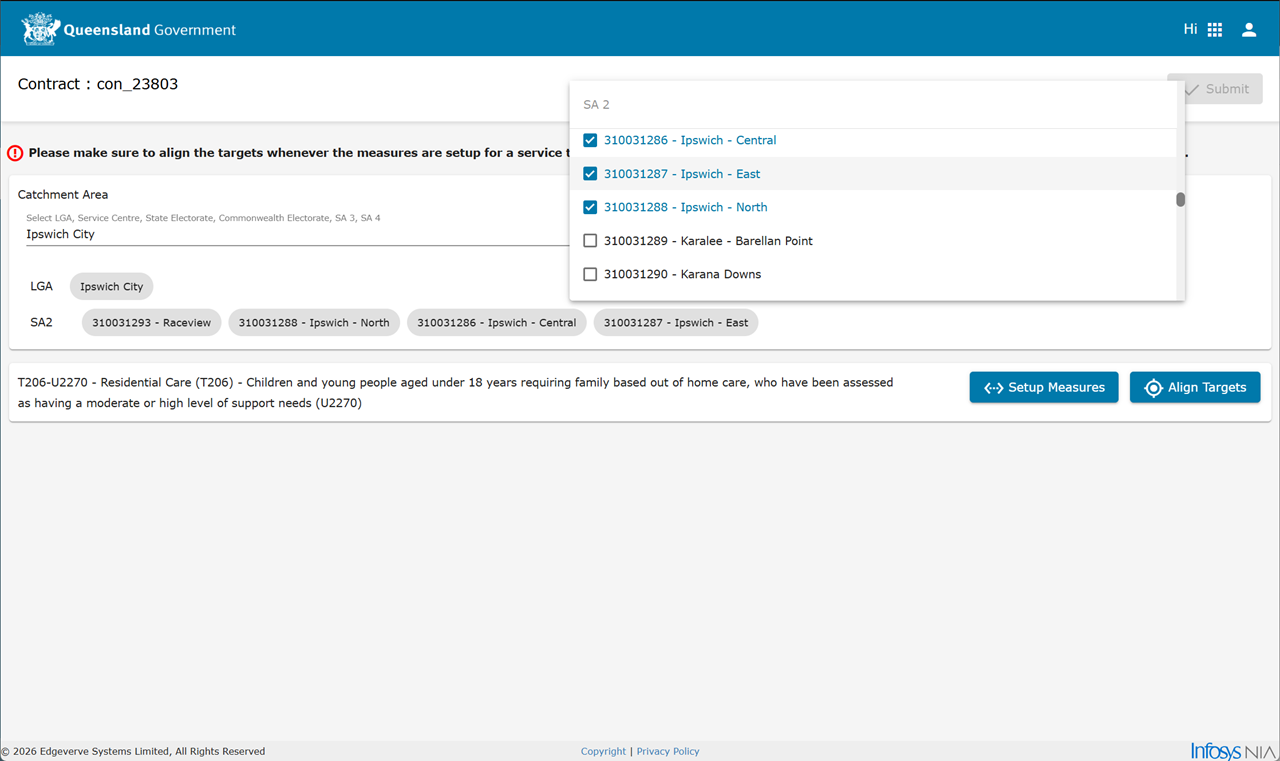
Select one or more values from the Select SA 2 ... dropdown list.
Note The two dropdown lists work independently. It is possible to select items from the SA 2 list that are outside of the areas selected from the LGA list.
-
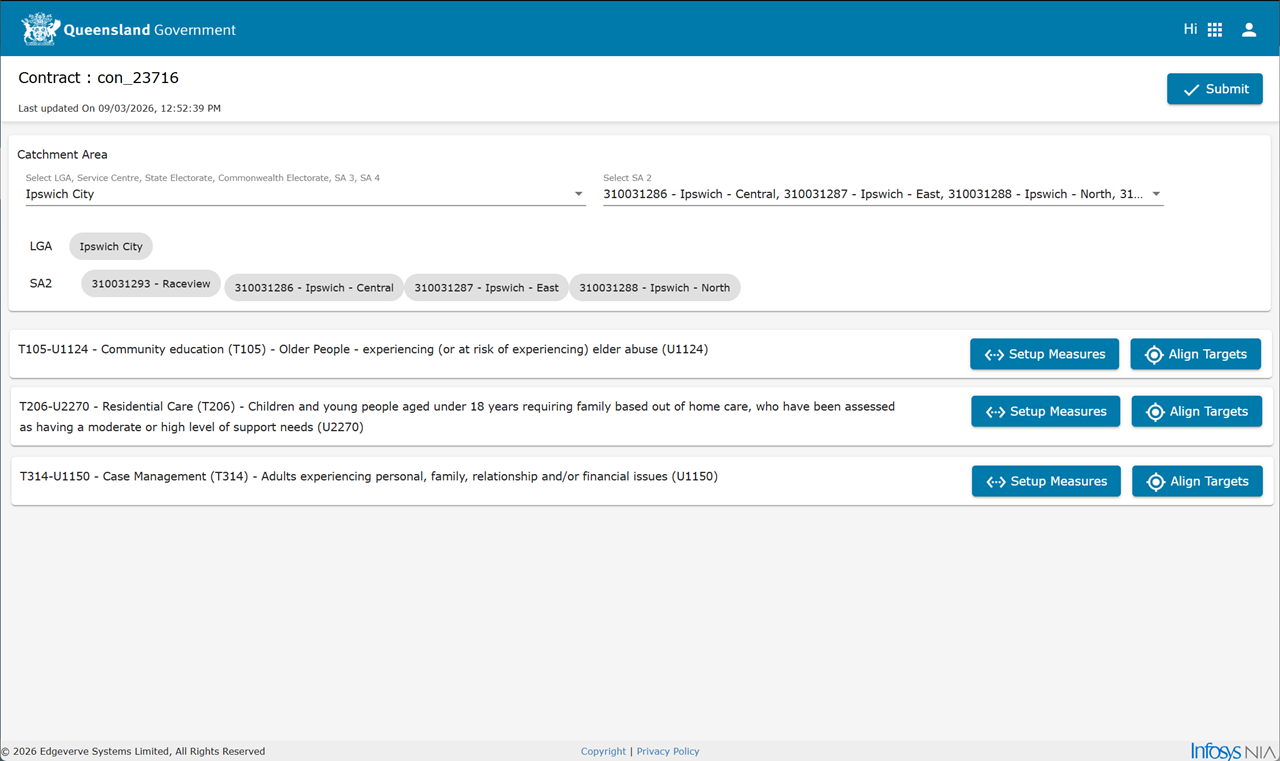
2. Setup Measures
Warning Where there are multiple Service Type / Service User combinations for the contract perform Setup Measures for each combination.
-
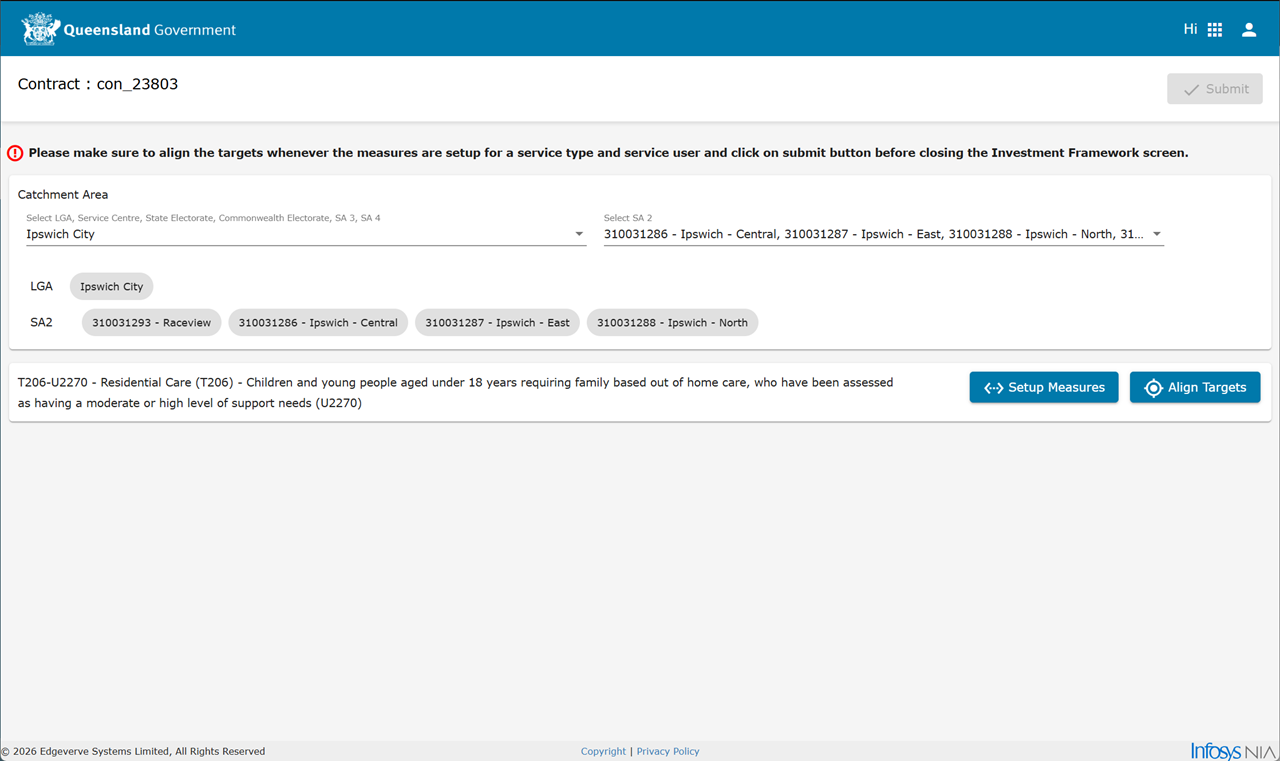
Click Setup Measures next to the first Service Type in the list.
-
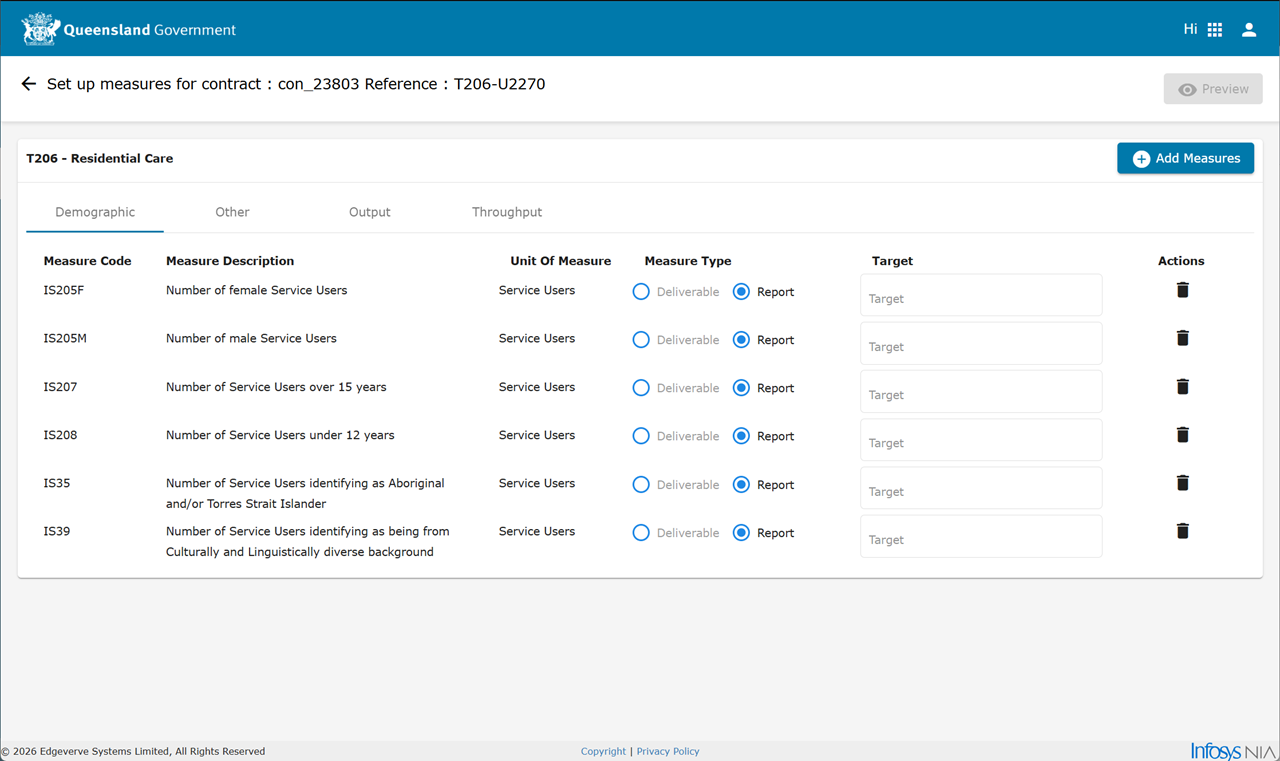
Enter Deliverable Targets and Report Targets as per the outcomes of the contract negotiations.
Note Measures are pre-populated from the default options for the selected Service Type / Service User combination.
Other, Demographic and Throughput are set up for reporting.
Outcome and Output are set up for deliverables.
Tip
-
Enter 0 if no Report Target is required.
-
Click the Bin icon to remove any measures not being included in the funding schedule.
-
-
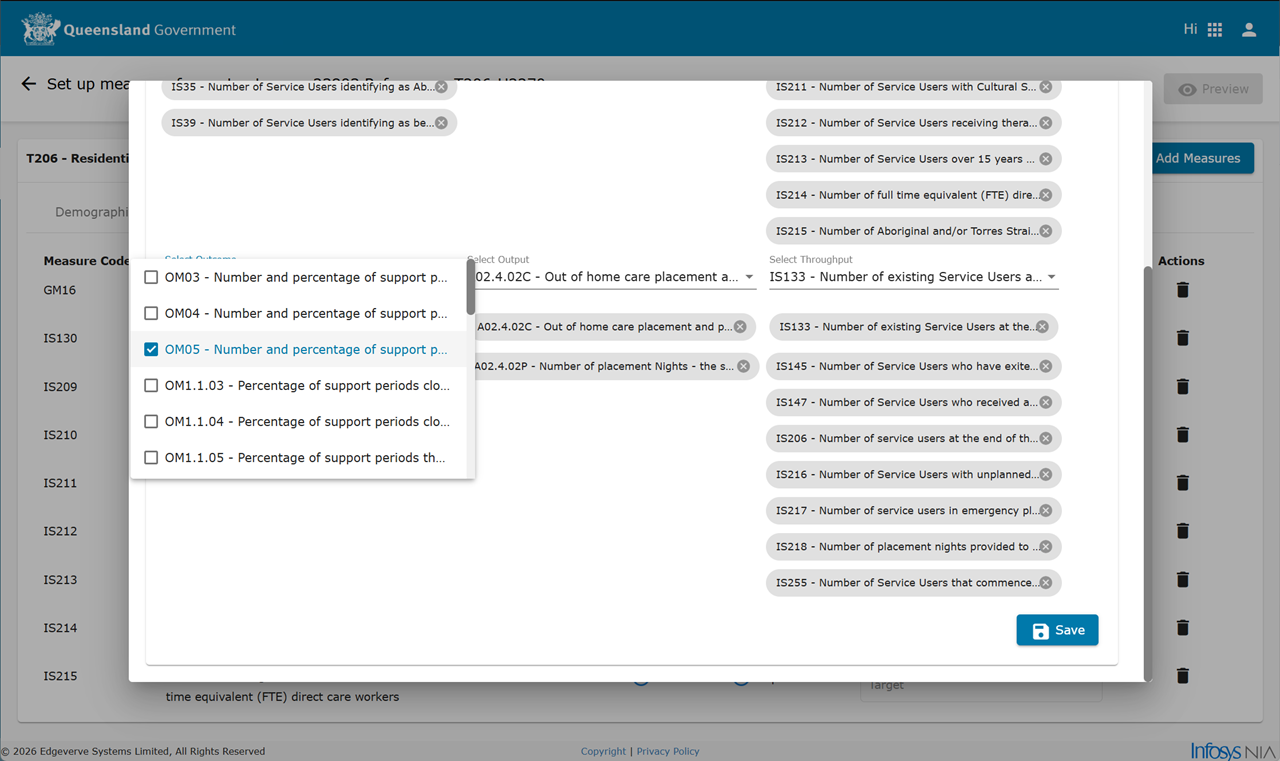
(Optional) Click Add Measures to select additional measures.
Tip If the measure is not listed, look under Other dropdown list. Some measures were moved to Other to overcome a character limitation in P2i.
-
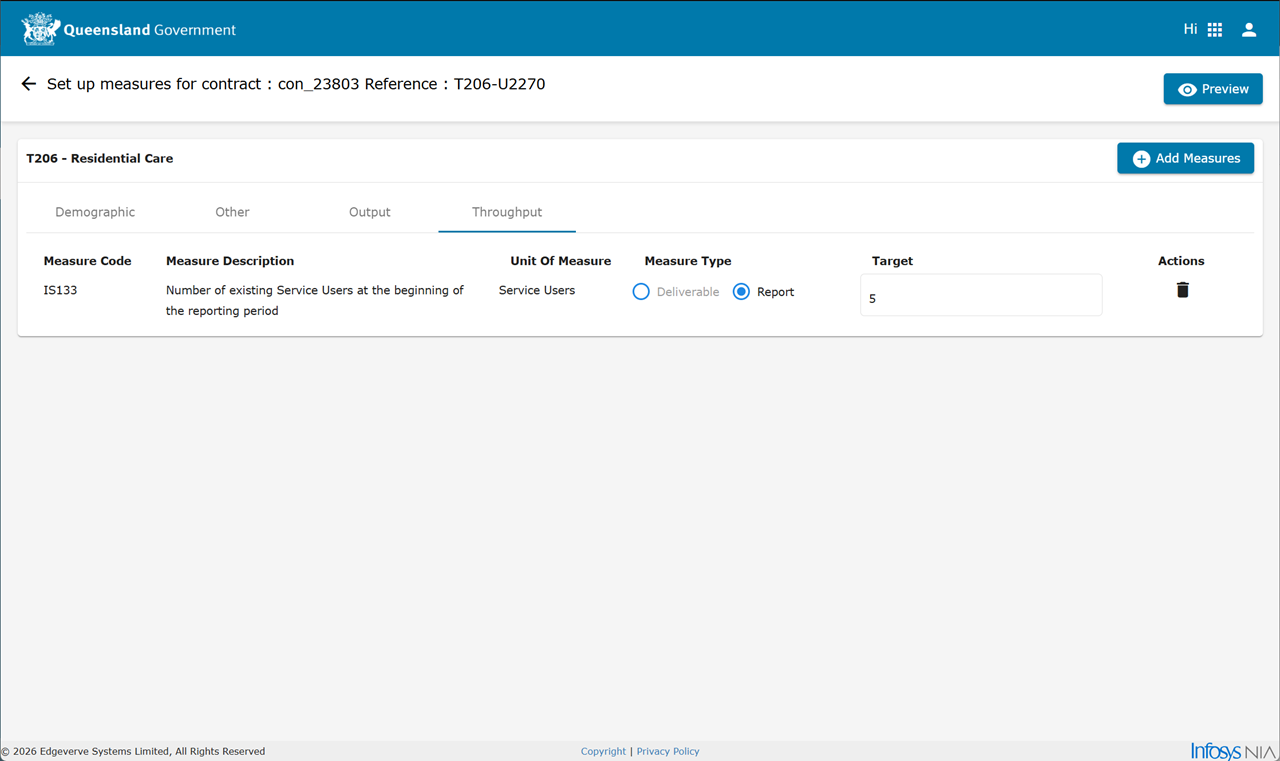
Click Preview when ALL targets are entered for each of the measures.
-
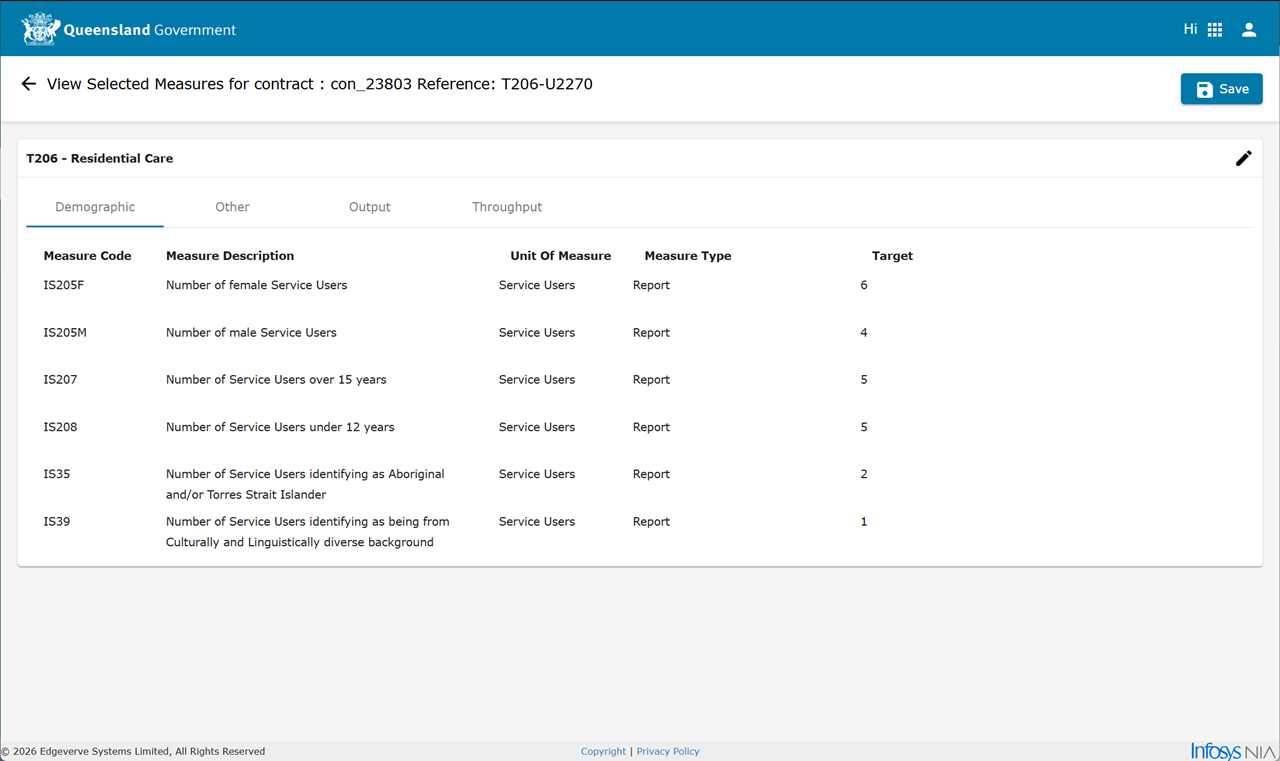
Click Save.
Tip Before clicking Save, click the Pencil icon to make any changes to the targets or add or remove any measures.
-
Click Close.
-
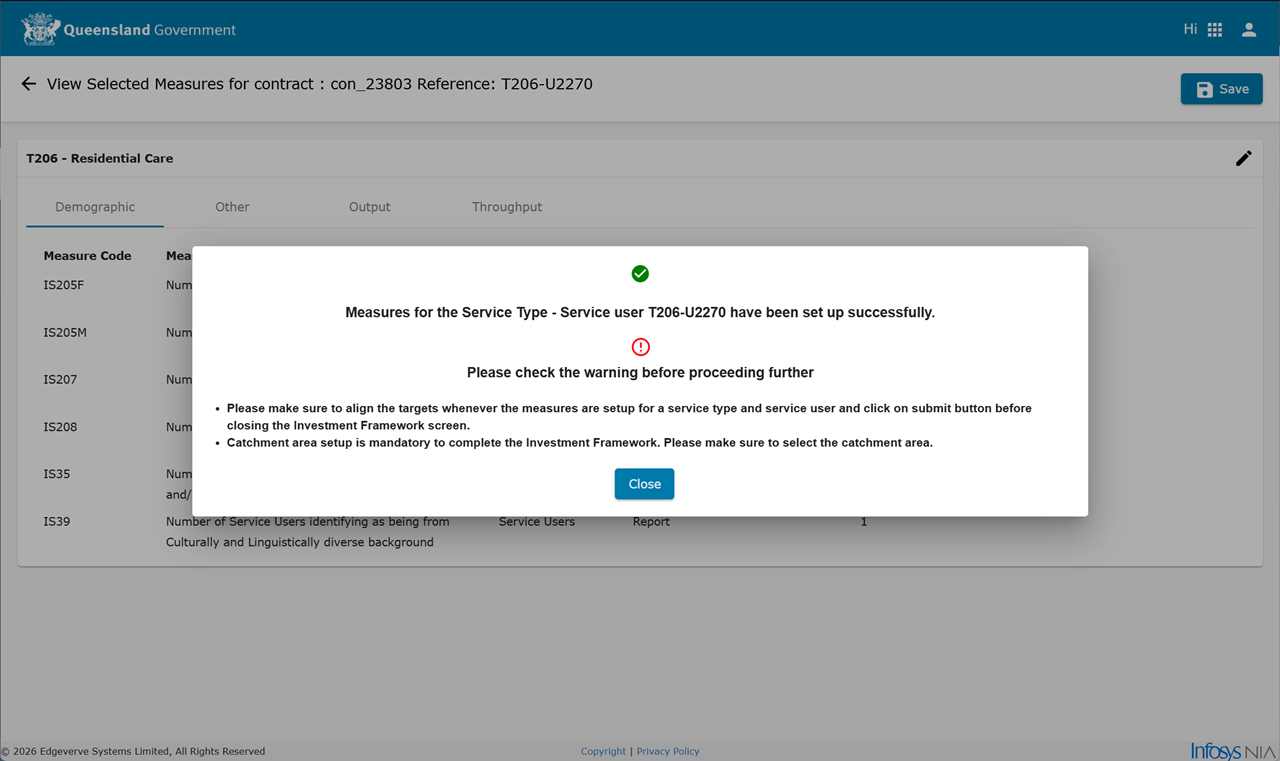
Please make sure to align the targets whenever the measures are setup for a service type and service user and click on submit button before closing the Investment Framework screen
-
Catchment area setup is mandatory to complete the Investment Framework. Please make sure to select the catchment area.
Tip Click X to remove measures from the Add Measures screen.
Click Save to return to the Set up measures screen.
Warning Take note of the messages in the dialog box:
3. Align Targets
Warning Where there are multiple Service Type / Service User combinations for the contract perform Align Targets for each combination.
-
Click Align Targets.
Note The Align Targets feature allows the entry of specific targets for each funding period.
Example Consider a contract has a start date (01/04/2026) and an end date (31/03/2028) with a per annum target of 1200.
2025-2026 funding period. Target = 300
2026-2027 funding period. Target = 1200
2027-2028 funding period. Target = 900.
-
Align Targets for each of the performance measure for each of the periods created in the Price table.
-
Click Preview.
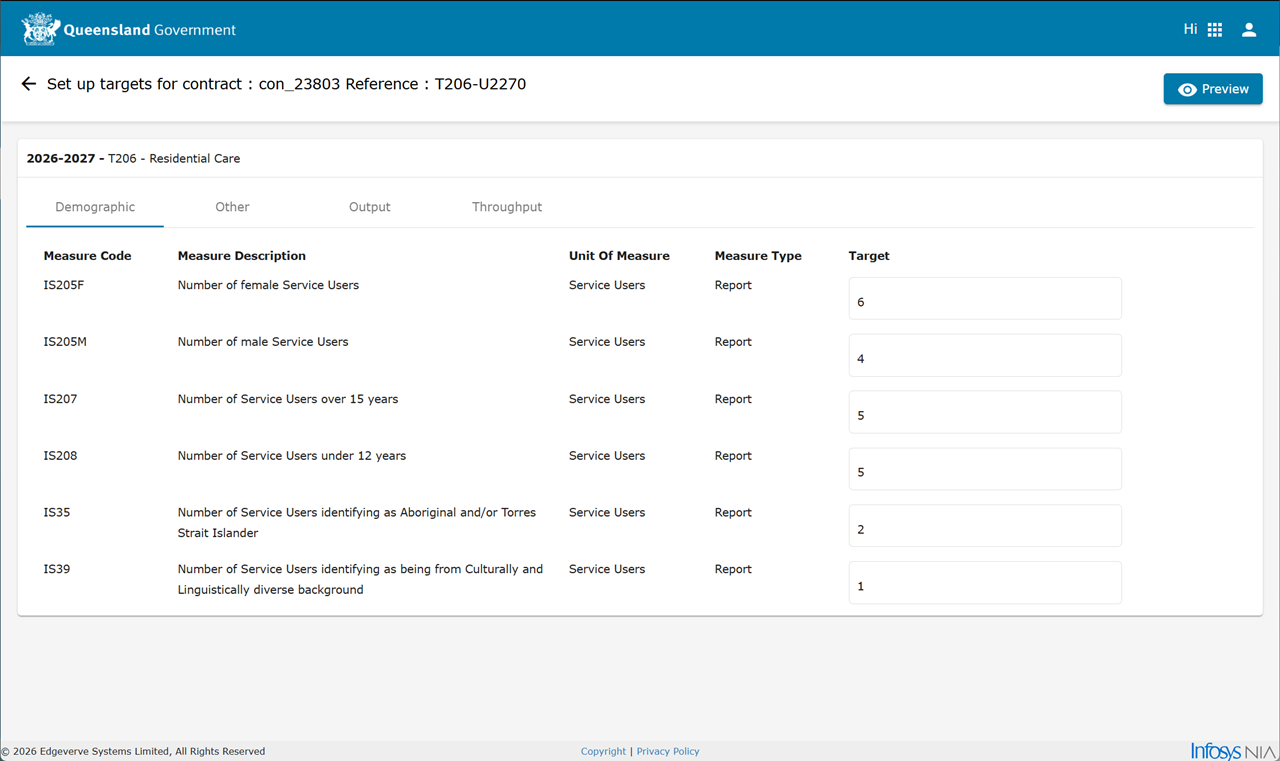
-
Click Save.
-
Click Close.
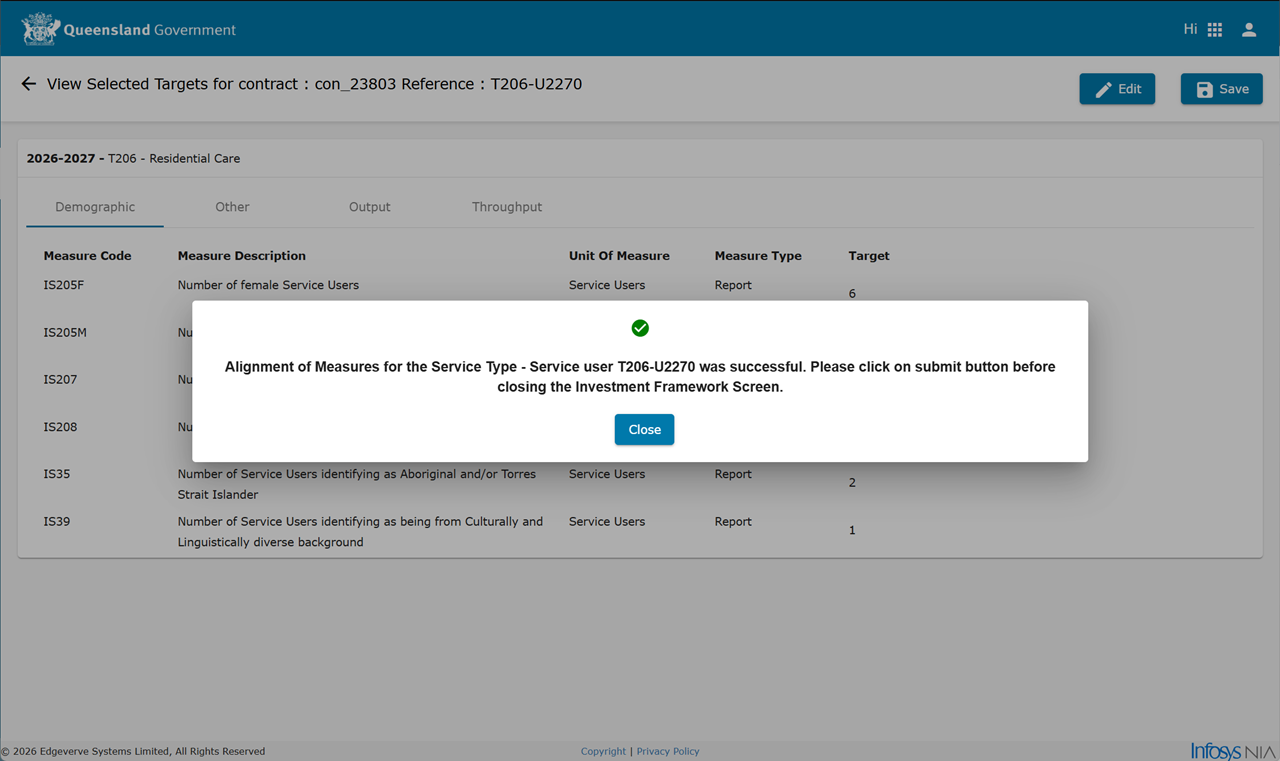
Tip Select the same measure for each period so that you can align the targets more easily.
Tip Click Edit if changes need to be made.
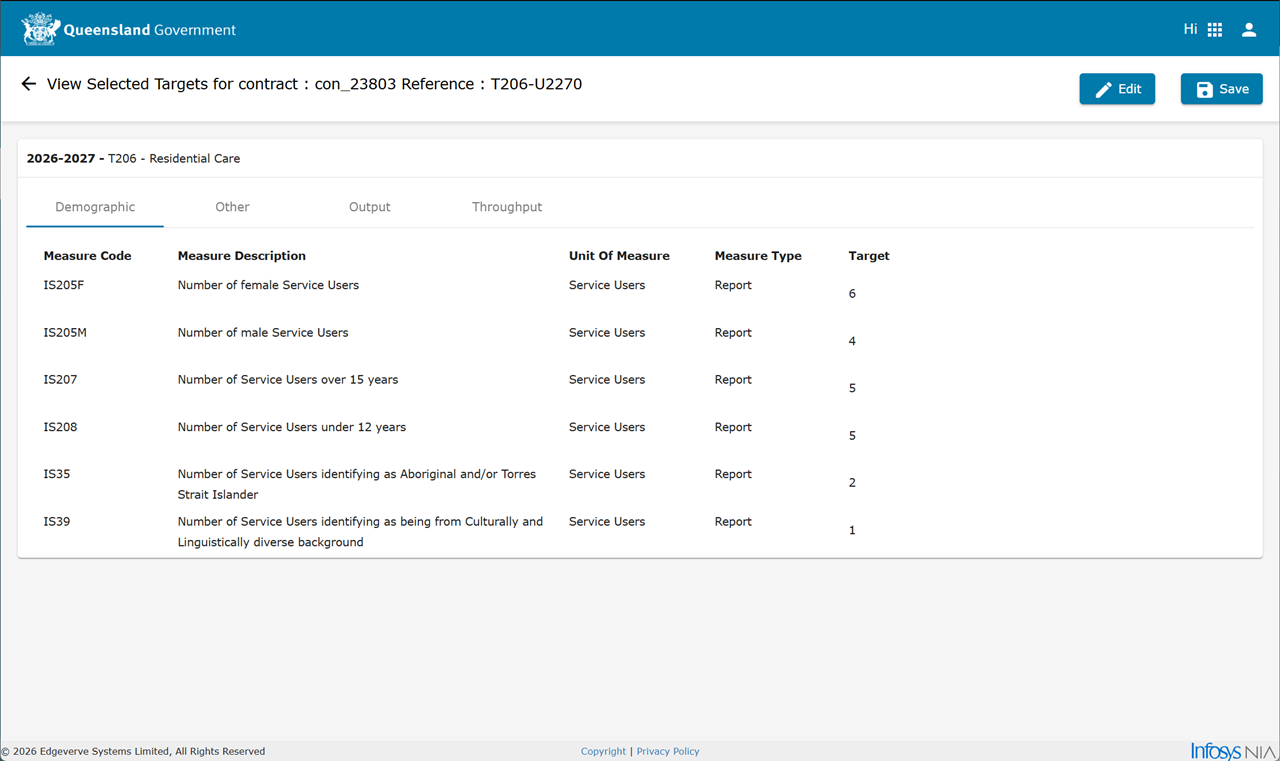
Warning When a contract has multiple Service Type / Service User combinations ensure both Setup Measures and Align Targets actions have been performed for EACH combination BEFORE clicking Submit.
-
Click Submit.
-
Click Close.
The Last updated On date/time information confirms the Investment Framework data (including catchment area and measures) are updated successfully.
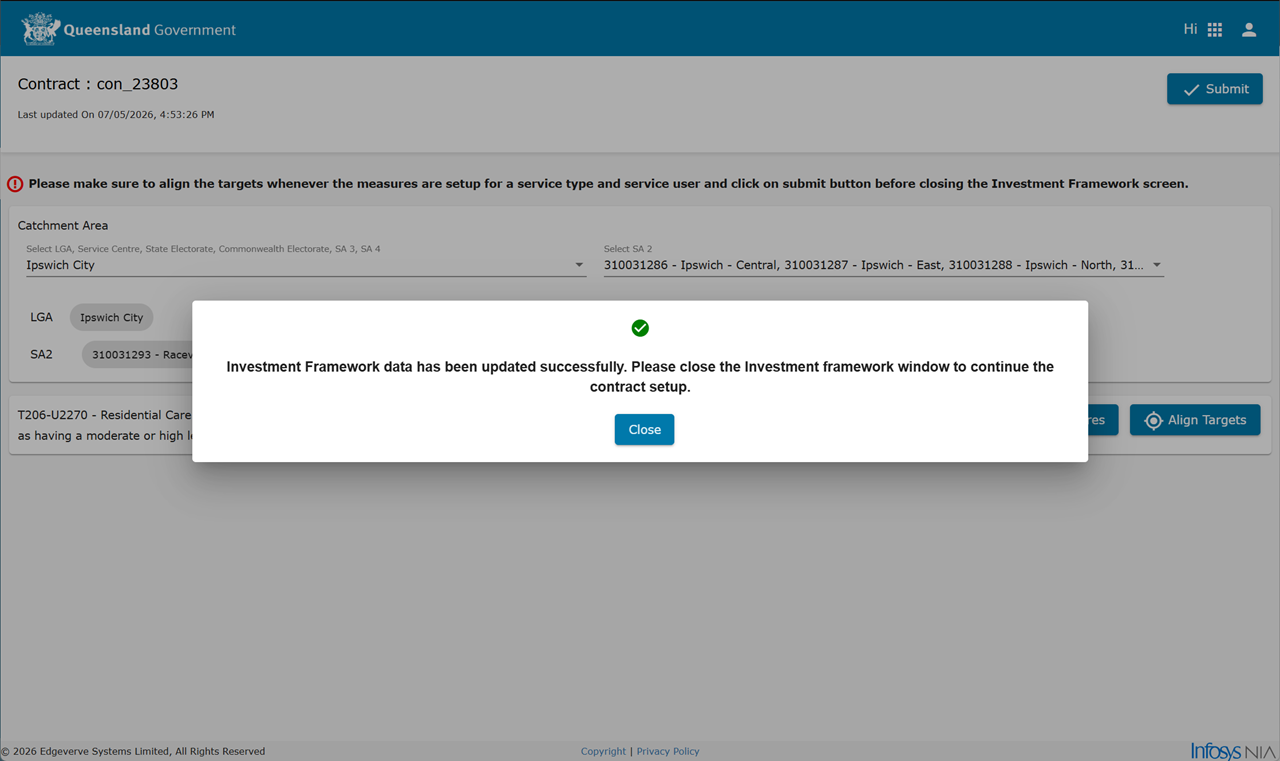
Close the Investment Framework Lookup window.
Generate an MCD
Once the additional information, pricing table and the IRF are complete, generate a contract (MCD Master Contract Document).
Warning
Ensure configuration of the Agreement Settings is completed BEFORE creating a contract (MCD) proposal. Refer to Agreement Settings page.
Consider carefully setting these fields as the settings are fixed for the life of the contract, including the contract variation process. For example, if contract negotiation is set to occur during initial contract creation, it will occur during the contract variation process.
Once the MCD proposal is created, editing these agreement settings IS NOT possible.
Tip A Funding Schedule would not be electronically signed.
-
From the contract, Contents Management tab > MCD page.
Note There is no Signatories page (between the MCD and Clause Management pages).
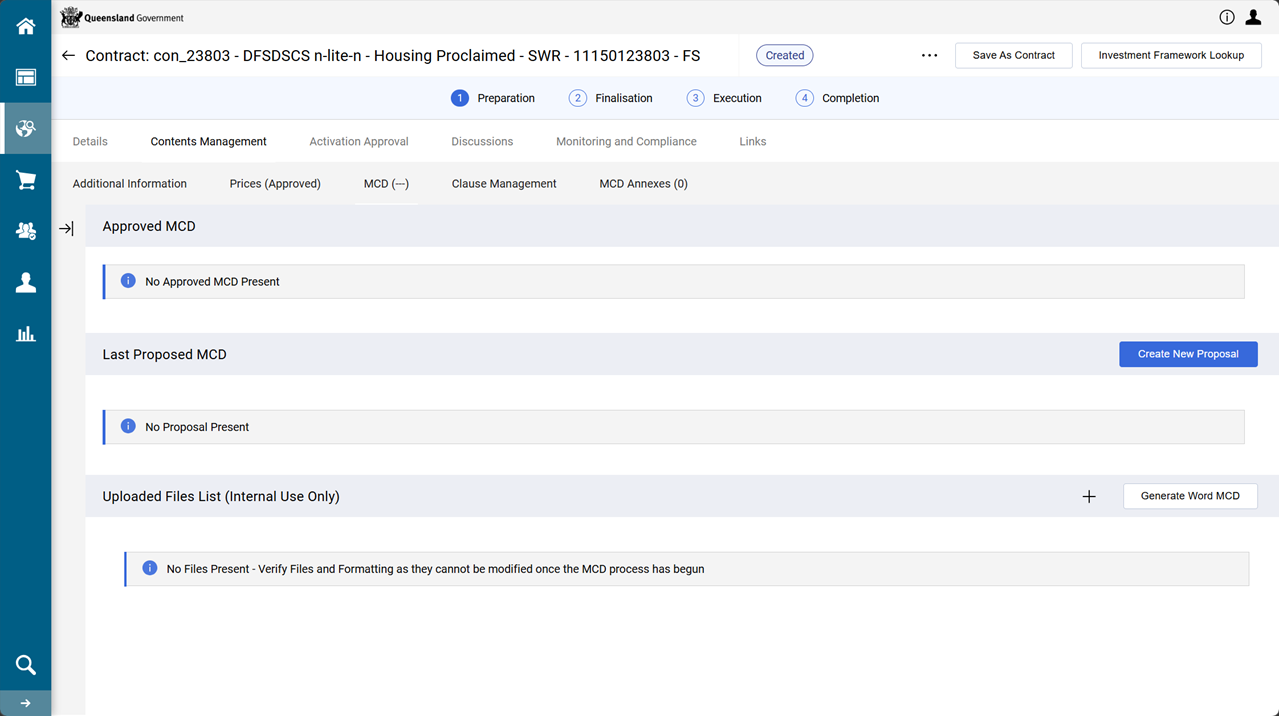
-
Click Create New Proposal
-
Leave Select Proposal Origin dropdown list set to From the latest Clause Revision.
TABLE: Select Proposal Origin - Values and Use Option Source Use Case From the Enable Library Clause
Standardised, pre-approved clauses stored in the clause library
Use when needing the most up-to-date, compliant, and standardised clauses
From the Latest Clause Revision
The most recent version of a clause that was modified in a prior contract or proposal
Use when needing to maintain continuity with a customised clause from a previous contract
From Previous Proposals Clauses from a specific previous proposal or contract Use when wanting to replicate clauses from a past proposal that are relevant to the current one.
Will need to pick which proposal version.
Note The warning indicators are a reminder clauses are not applicable to this contract. If it appears a clause is being excluded but it ought to be included, click Cancel and return to Contract Management tab > Additional Information page and change selections.
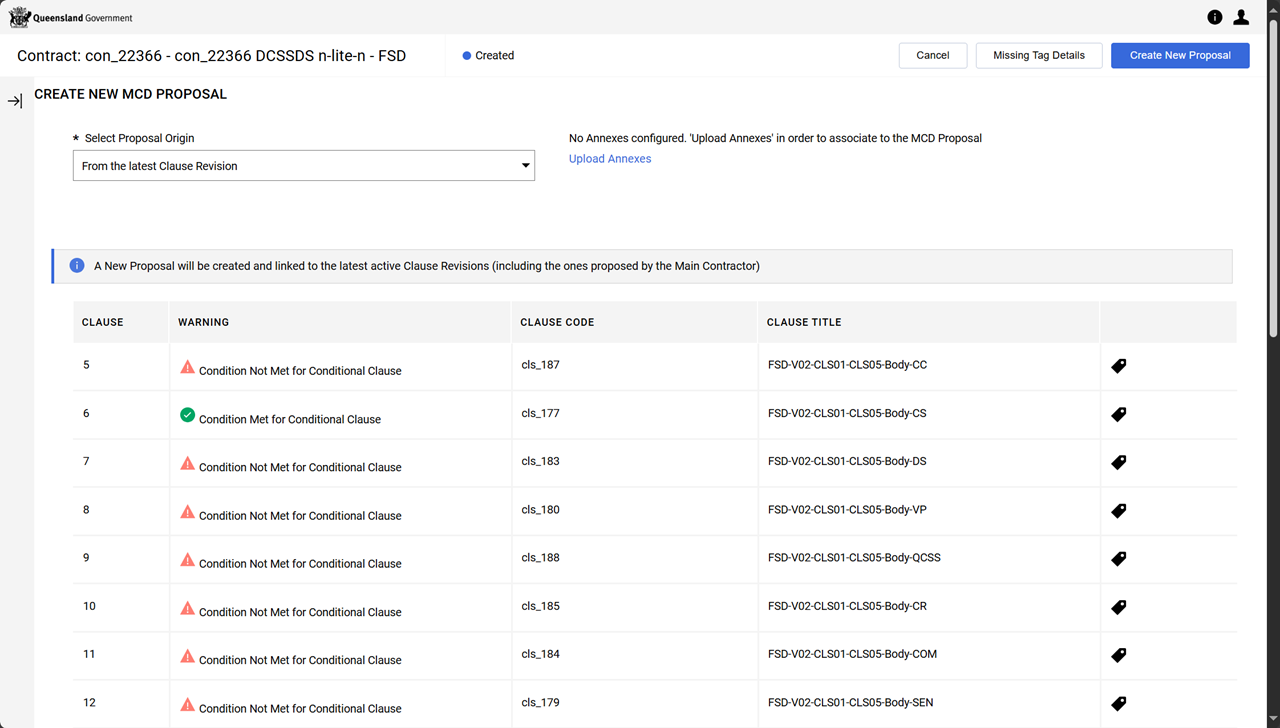
-
Click Create New Proposal
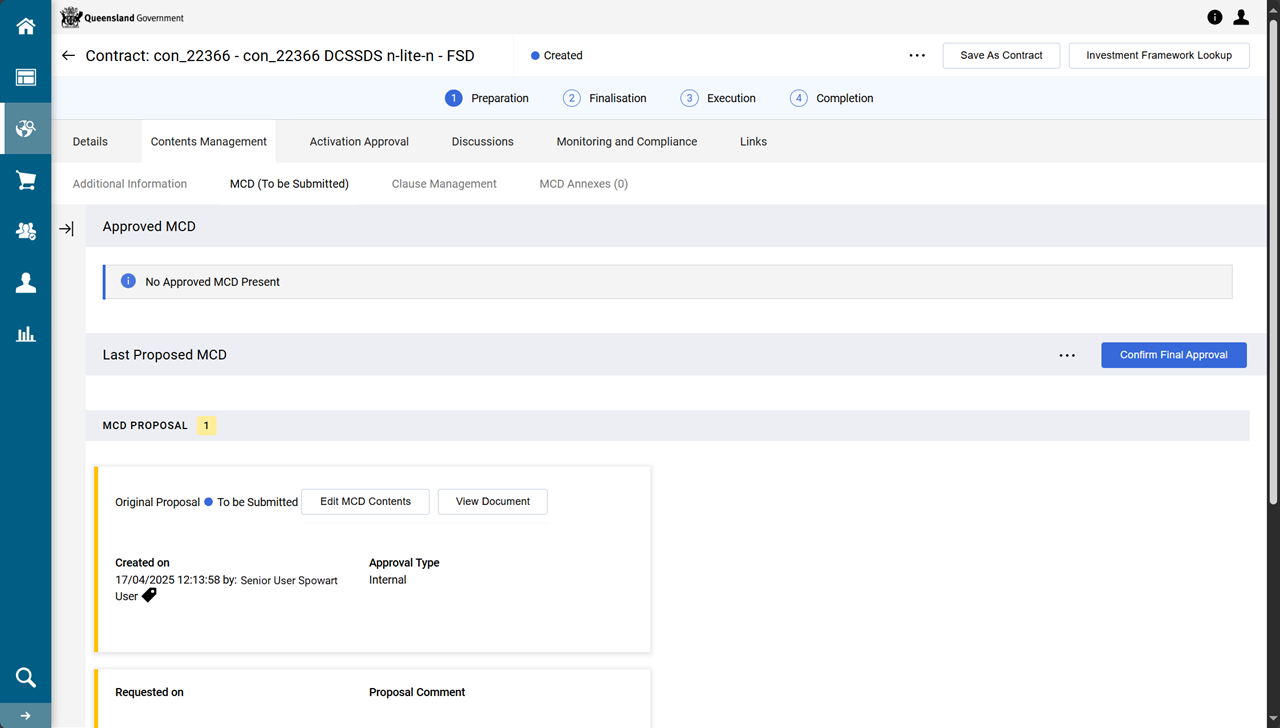
Note The status of the the MCD is To Be Submitted.
-
(Optional) Click Edit MCD Contents.
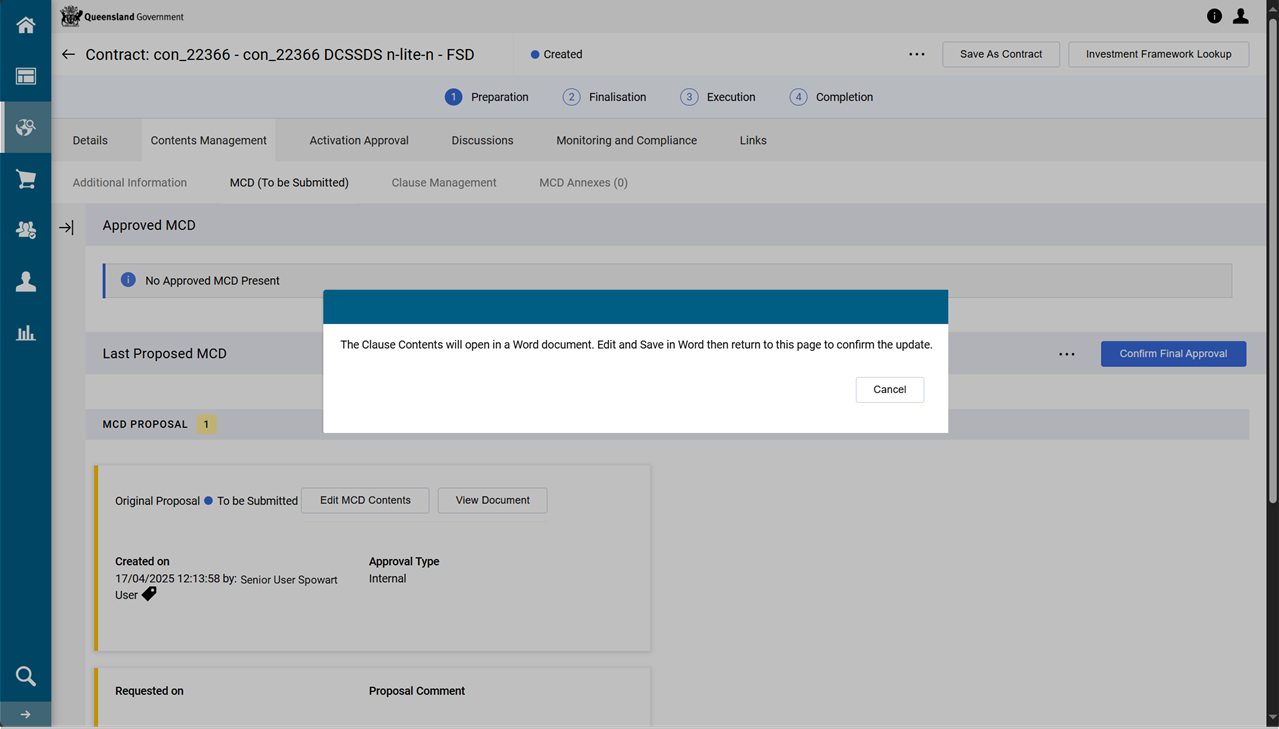
The MCD opens in Microsoft Word and is available for editing.
Warning Use extreme caution when editing the MCD document as it contains numerous P2i tagged content and there may be unintentional errors introduced if incorrect editing occurs. If this happens delete proposal, recreate a new proposal and recommence the edits.
-
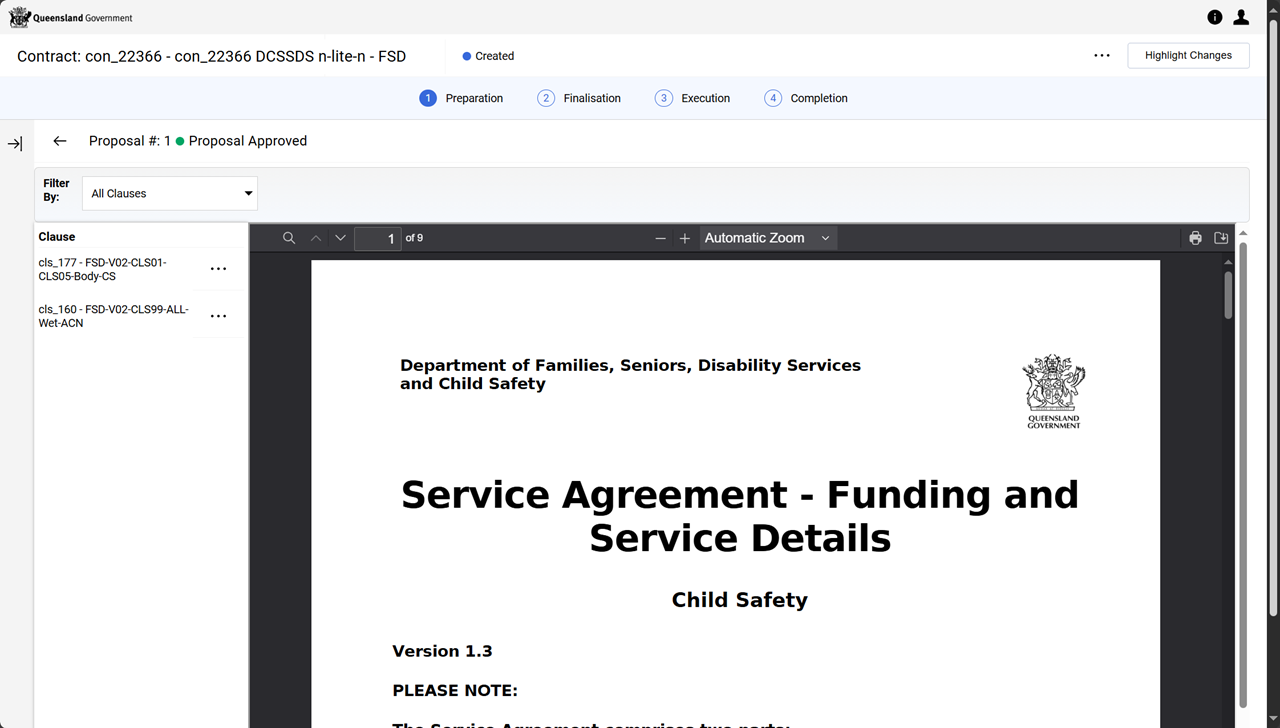
Click View Document.
-
Review the contract and click Back arrow.
Tip <- ... is to left of Proposal #: at top of window
-
Click Confirm Final Approval.
-
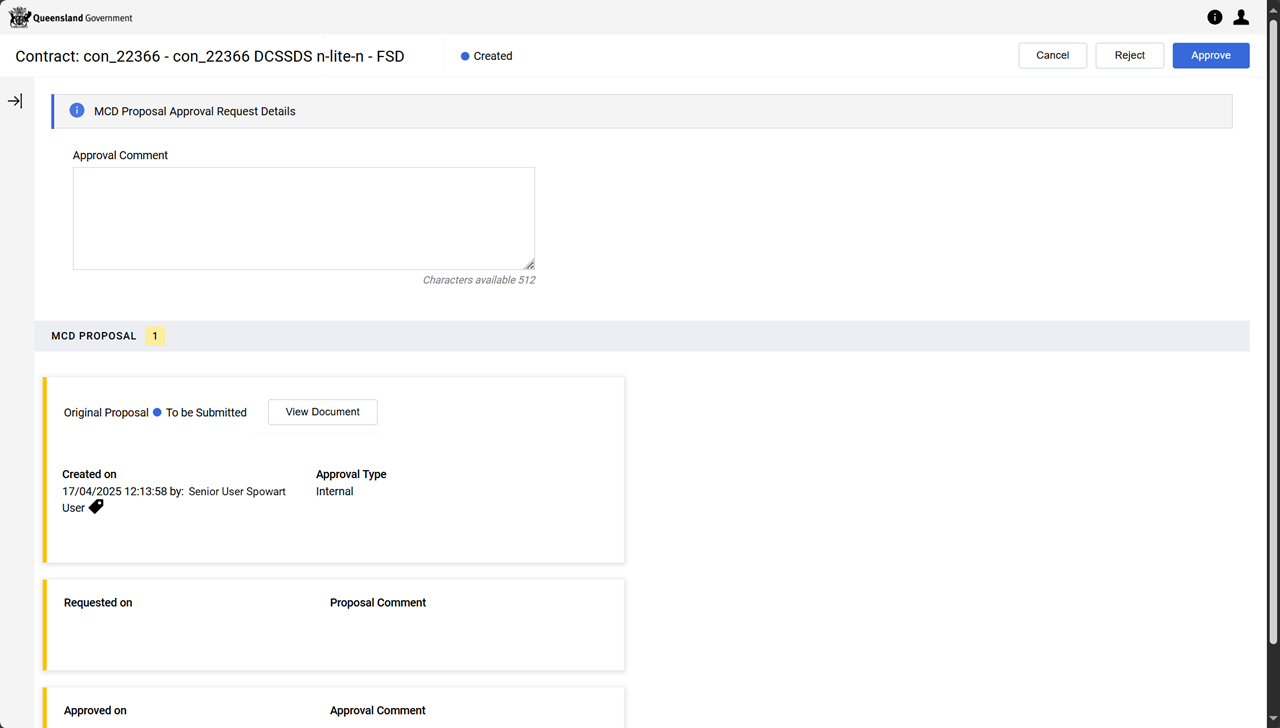
Click Approve.
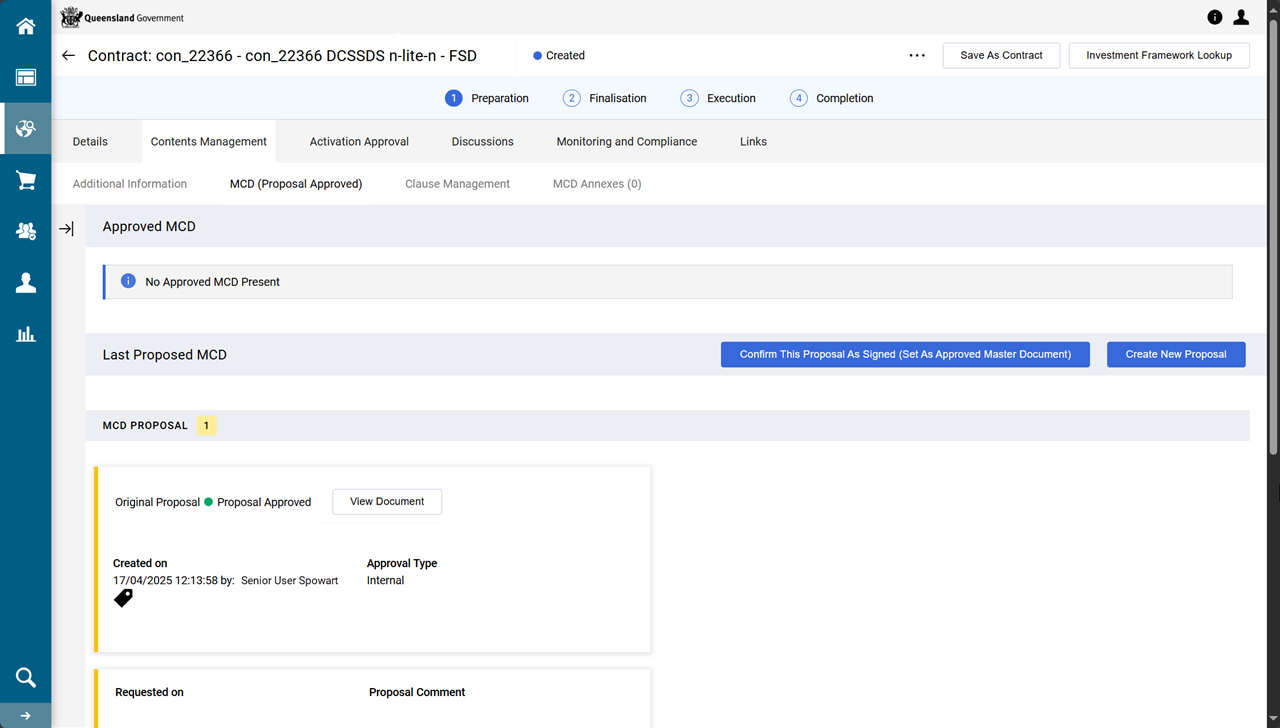
The status of the MCD is Proposal Approved.
Validate for Activation
This procedure ensures the contract is in a valid state prior to and being ready for activation. This process can be performed in two workflow steps. This is the first opportunity to perform the action.
-
From the contract, click the ellipsis (... in the right-hand corner of the screen).
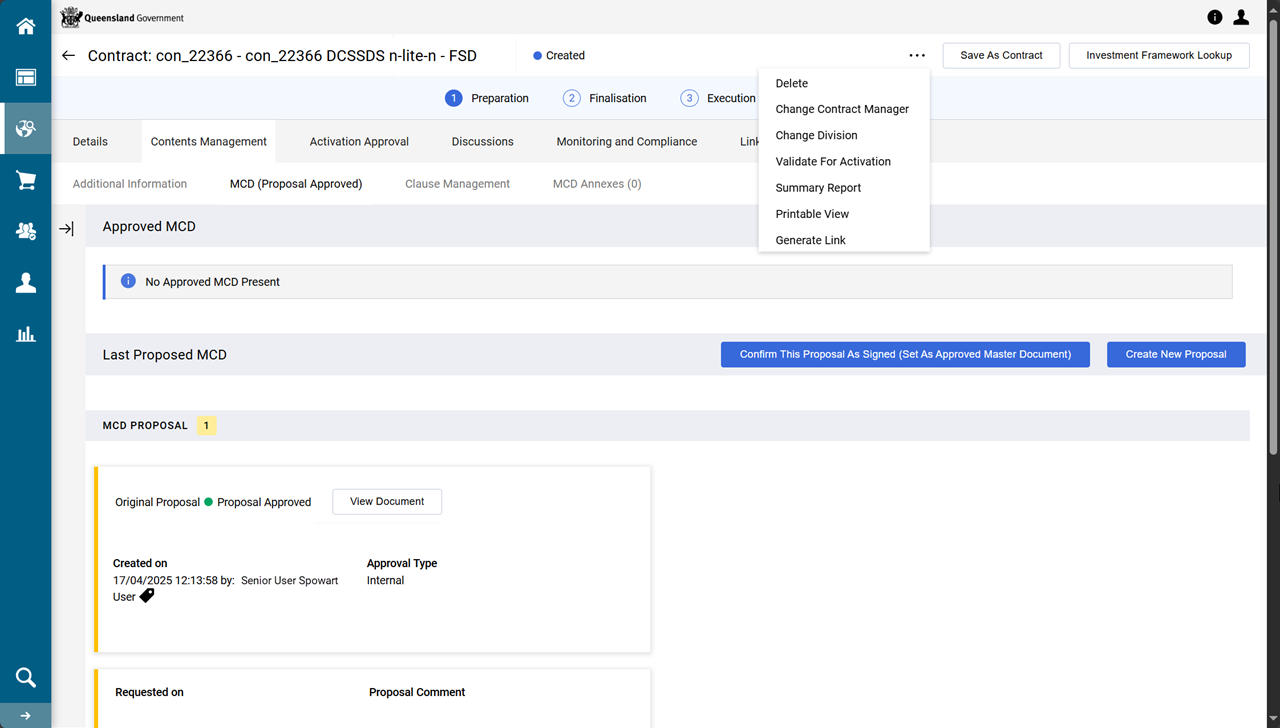
-
Click Validate for Activation
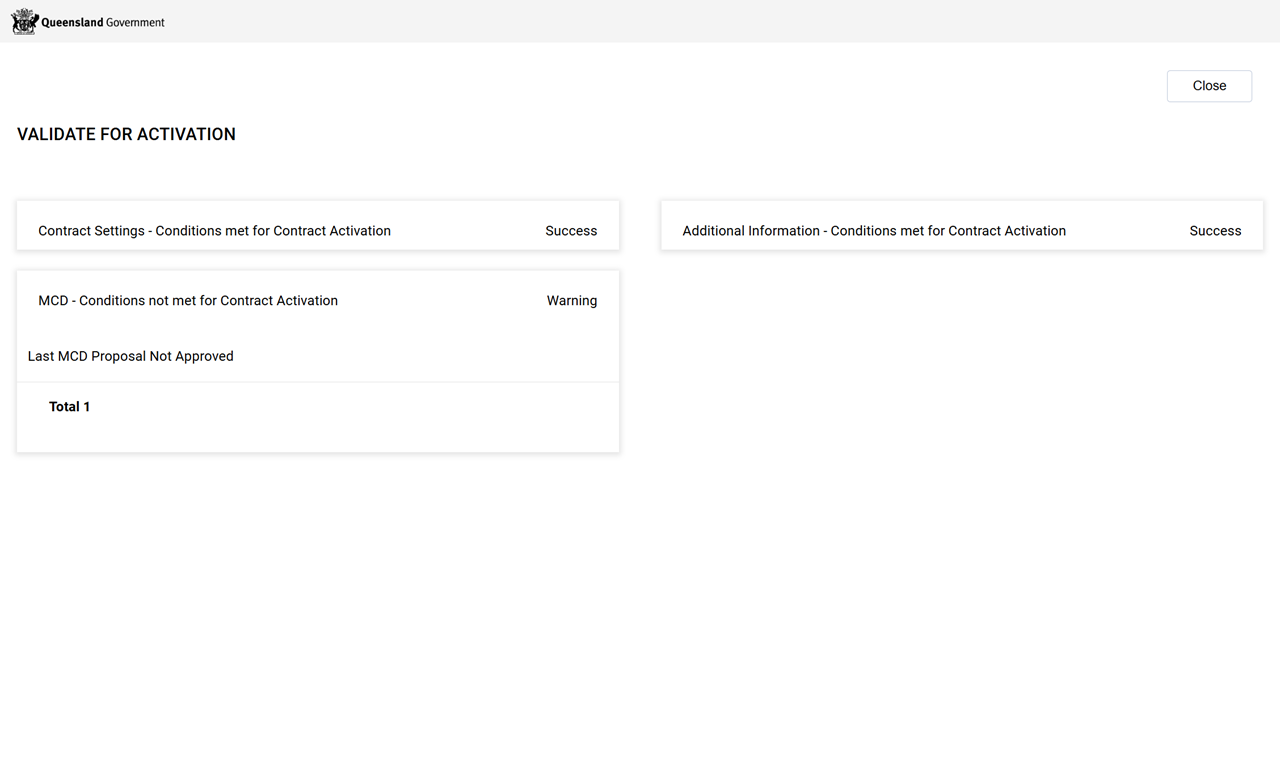
Note The Warning for MCD - Conditions not met for Contract Activation highlights the Last MCD Proposal Not Approved. This is expected and is normal for this point in the process. Correct any other warnings.
Change the contract's Contract Manager
At this point in the process, assign the P2i Contract Officer to be the contract's Contract Manager. (This will also ensure the P2i Contract Officer can complete the contract setup activities in the Contract Management Hub).
Tip If the P2i Contract Officer has not been added to the Project Team, add them. Being on the Project Team will enable more access to make changes to the contract. Refer to Assign project team members.
-
From contract, click the ellipsis (... in the right-hand corner of the screen).
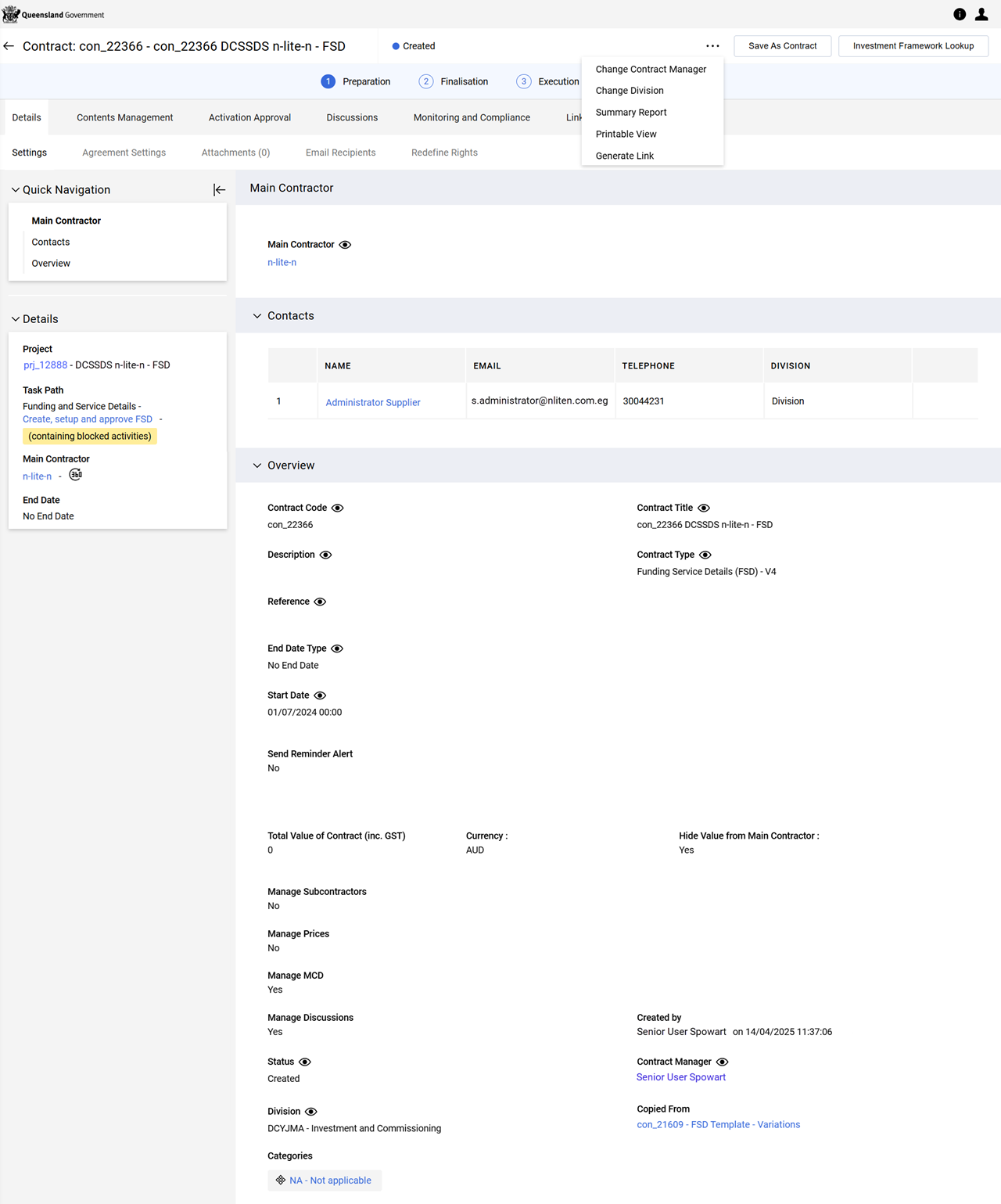
-
Click Change Contract Manager.
-
Search for and select the P2i Contract Officer.
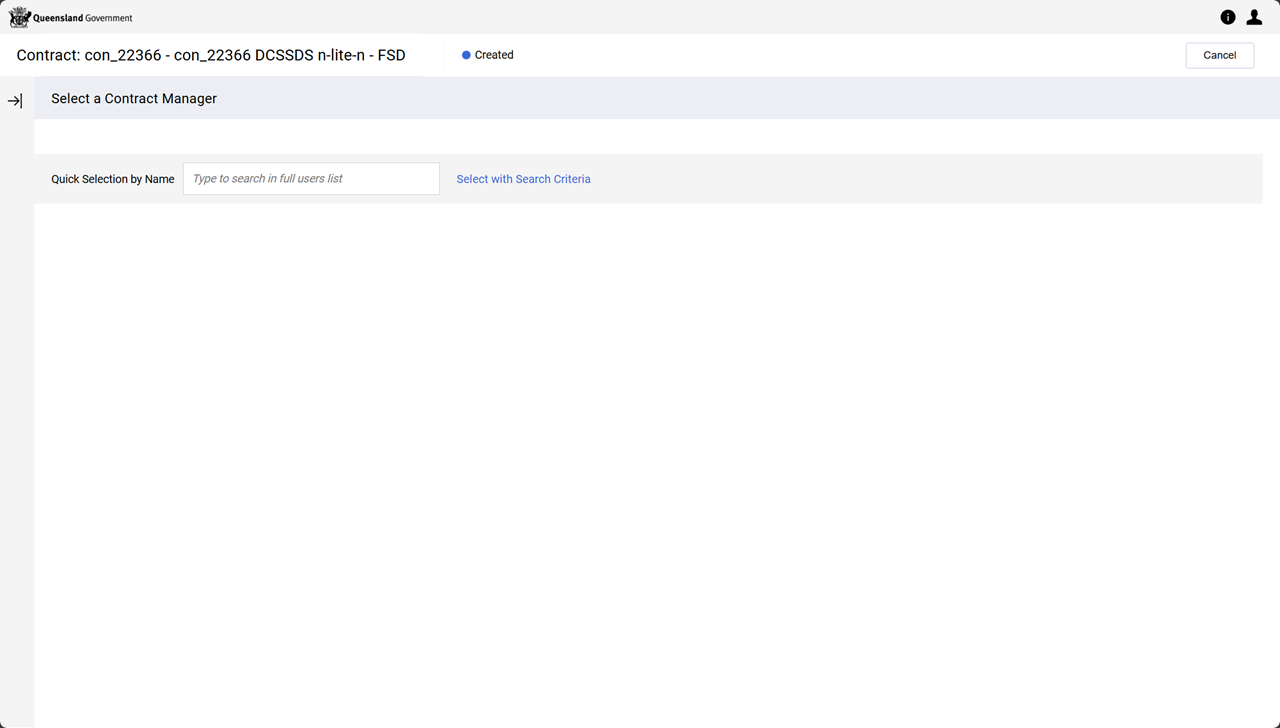
-
Click Confirm.
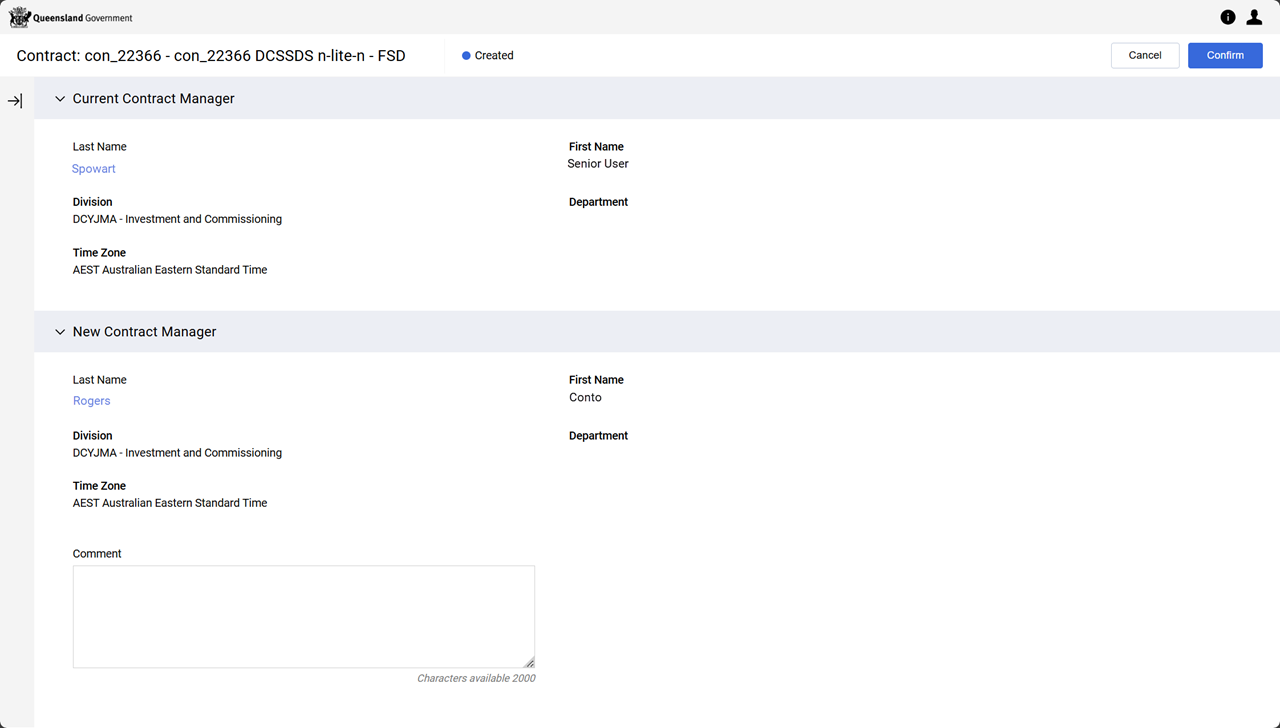
The Contract Manager is updated and the P2i Contract Officer receives an email notification informing they are the Contract Manager for this contract.